USER MANUAL

Everything you need to know about using VidVana.

Getting Started

Landing Screen

When you first launch VidVana, you are greeted with a clean landing screen that offers two very different ways to enjoy your videos. This is your "control deck" where you decide whether you want a quick viewing session or to begin building a permanent, high-powered video library.

Landing Screen screenshot

From here, you have two distinct paths to choose from - each designed for a different type of viewing experience. On the left is your quick access option for immediate playback. On the right is your gateway to building a powerful, organized video library. Both paths give you full access to VidVana's advanced features, but they serve different purposes depending on how you want to use the app.

Single Player Mode (The "Quick View")

Single Player Mode (The "Quick View") illustration

If you just want to watch one specific video without worrying about a library or a multi-video grid, the Single Player button is your best choice. Clicking this acts exactly like a traditional video player (such as VLC or QuickTime). It opens a file selector on your computer, lets you pick one video, and immediately plays it in a full-sized window with all of VidVana's advanced controls like bookmarks, speed adjustment, and screenshotting available for that session. This is perfect for "one-off" viewing where you don't need to save the video into your collection.

Build Your Library (The "Command Center")

Build Your Library (The "Command Center") illustration

For the full VidVana experience, you'll want to use the Build Your Library button. This is how you "teach" the app where your videos are located. When you click create a library, you'll pick one or more folders from your hard drive. VidVana then performs a deep, recursive scan, searching through every subfolder to find every compatible video file. After the scan, a specialized portal opens. Think of this as your "pre-import" filter. Instead of just dumping everything into the app, you get a highly detailed table showing exactly what was found.

Video Loading

Video Loading

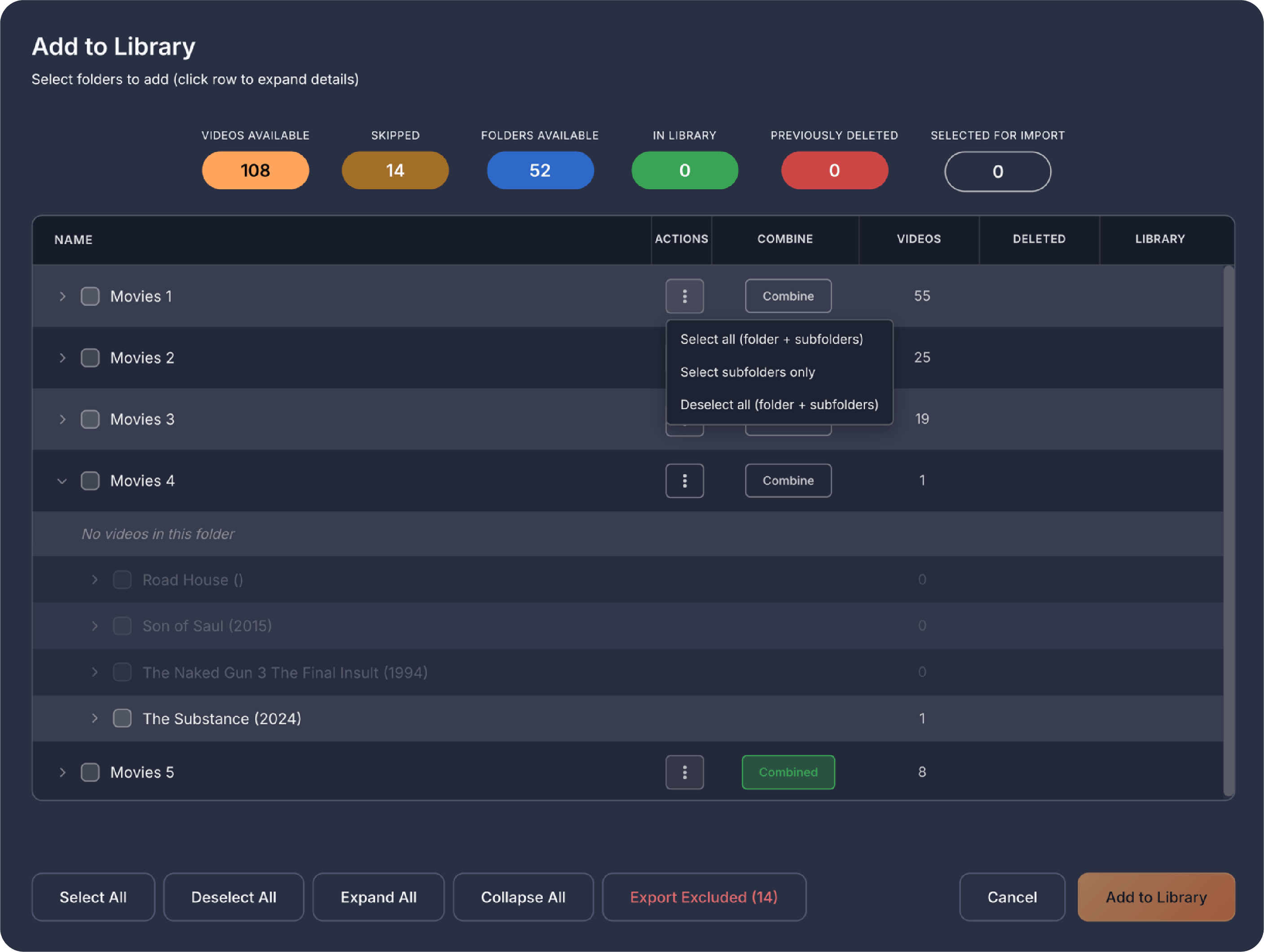
The selection portal is a powerful "pre-import" filter that gives you total control over how your videos enter the app. It is designed to be highly informative, using a multi-layered interface to show you exactly what the app found on your hard drive.

Video Loading screenshot

The Smart Summary (Pills Row)

At the very top of the portal is the Pills Row, a series of color-coded badges that give you an instant "health check" of your scan results. These counts update in real-time as you make selections:

The Smart Summary (Pills Row) screenshot
  • Videos Available: The number of brand-new videos found that can be added.
  • Skipped: Videos that use incompatible codecs (like ProRes or DivX) that the app cannot play.
  • Folders Available: The total number of separate folders found in your scan.
  • In Library: Videos that you have already added previously, which the app will skip to avoid duplicates.
  • Previously Deleted: A count of videos you once removed from your library but are still on your drive.
  • Selected for Import: The final number of videos that will actually be added when you click the button.

The Folder Tree (The Interactive Table)

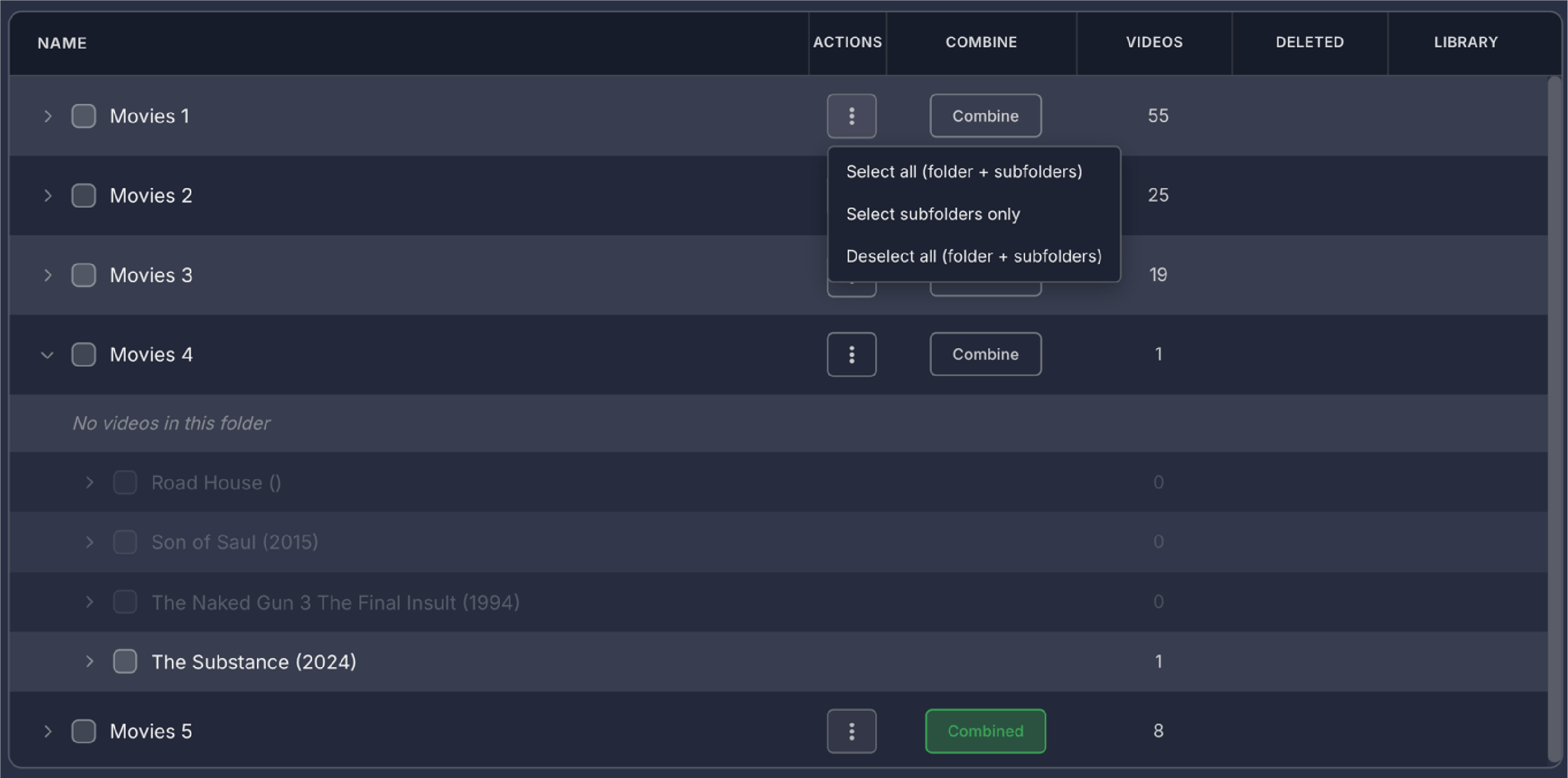
The heart of the Add Folder portal is the Folder Tree, an expandable table that mirrors your computer's folder structure exactly. When you click the Add Folder button and select a folder, VidVana scans it and displays every folder and subfolder in a hierarchical view. The table has six columns designed to give you complete control over what gets imported.

The Folder Tree (The Interactive Table) screenshot

Name Column

The Name column shows the folder name as it appears on your computer. Each row represents one folder, and the indentation shows you the folder hierarchy - child folders are indented beneath their parents, just like in Finder or File Explorer.

How to use it:

Click anywhere on a folder row to expand it and reveal what's inside. When you expand a folder, you'll see:

  • Subfolders appear as additional rows below (indented one level deeper)
  • Individual video files appear in a list showing each file's name and status
  • Click again to collapse the folder and hide its contents
  • A small chevron arrow (›) on the left rotates to indicate whether a folder is expanded or collapsed

Checkbox: Each folder has a checkbox to select it for import. Check the box to include that folder's videos in your import. Unchecked folders are skipped entirely.

Color coding in the Name column:

  • White text: Folder has videos available to import
  • Green text: All videos in this folder are already in your library (nothing new to add)
  • Red text: All videos in this folder were previously deleted from your library
  • Gray text: Folder has no importable videos (only unsupported formats or incompatible codecs)

Actions Column

The Actions column contains a three-dot button (⋮) that appears only on folders that contain subfolders. Clicking this button opens a small dropdown menu with selection options.

Menu options (for regular folders):

  • Select all (folder + subfolders): Checks this folder and every subfolder beneath it
  • Select folder only: Checks only this folder, leaving all subfolders unchecked — useful when you only want the videos directly inside the parent folder
  • Select subfolders only: Checks only the child folders, leaving the parent folder unchecked
  • Deselect all (folder + subfolders): Unchecks this folder and every subfolder beneath it

Menu options (for combined folders): When a folder has "Combine" enabled, the menu simplifies to:

  • Select all: Checks everything in the combined group
  • Deselect all: Unchecks everything in the combined group

This menu is especially useful when you have a deeply nested folder structure and want to select or deselect an entire branch without clicking each folder individually.

Combine Column

The Combine column contains the "Combine Subfolders" button, which appears only on folders that have subfolders inside them.

What it does: When you click Combine, VidVana will treat all videos from that folder AND all its subfolders as if they belong to the same single folder in your library. Instead of having separate folder entries for each subfolder, everything gets grouped under one parent folder name.

Why this is useful: Imagine you have a folder called "Vacation 2024" with subfolders like "Day 1", "Day 2", "Day 3", etc. Without Combine, each day would appear as a separate folder in your library. With Combine enabled, all videos appear together under "Vacation 2024" - cleaner and easier to browse.

Visual indicators:

  • "Combine" (default): Button shows in neutral gray; subfolders will be imported as separate entries
  • "Combined" (active): Button turns green; all subfolder videos will be grouped under this parent

When you activate Combine on a parent folder, the Combine buttons on all its subfolders become disabled (grayed out), showing you that those folders are now part of the combined group.

Important: Even when combined, VidVana remembers the original file path of each video. If you ever need to find the actual file on your computer, that information is preserved.

Videos Column

The Videos column shows a count of new videos in each folder that are available to import. This count includes videos that have never been added to your library before and have supported formats (MP4, MOV, WEBM) with compatible codecs.

What the number means:

  • The number shown is the total count including this folder plus all subfolders beneath it
  • When you expand a folder, you can see exactly which files are new (shown in the video list below)
  • A count of 0 with white text means no new videos to import
  • A count of 0 with gray text means the folder only contains unsupported or incompatible videos

Note: This column does NOT count videos that are already in your library (those appear in the Library column) or videos you previously deleted (those appear in the Deleted column).

Deleted Column

The Deleted column shows how many videos in each folder were previously deleted from your library but still exist on your drive.

What "Previously Deleted" means: When you remove a video from your VidVana library, the app remembers that you deleted it. If VidVana scans a folder and finds those same files again, it recognizes them as "previously deleted" rather than treating them as new videos.

Visual indicator:

  • A red dot appears next to the count when deleted videos are found
  • Folders that are entirely made up of previously deleted videos show their name in red text

How to re-import deleted videos: When you expand a folder containing deleted videos, each deleted file is shown with a checkbox. Check the box next to any deleted video you want to bring back into your library. This lets you selectively re-import videos you may have removed by mistake, without importing everything.

Library Column

The Library column shows how many videos from each folder are already in your library. These videos will be automatically skipped during import to avoid duplicates.

Visual indicators:

  • Green dot + count: ALL videos in this folder are already in your library (nothing new to import). The folder name will also appear in green.
  • Count only (no dot): Some videos are in library, but others are new and can be imported
  • Empty: No videos from this folder are currently in your library

Why this matters: If you're adding the same folder again (perhaps after downloading new videos into it), VidVana automatically detects which videos you already have and only imports the new ones. You never have to worry about accidentally creating duplicates.

Video File Status When Expanded:

When you expand a folder to look at the individual files, the app uses a specific visual language to tell you the status of every video:

  • New Videos: Displayed in grey text, indicating these are ready to be added to your library.
  • In Library: Marked with a green dot, showing you already have this video saved.
  • Previously Deleted: Shown in red text with a checkbox. Check the box to specifically re-import these videos and bring back their old ratings.
  • Incompatible: These are greyed out with strikethrough and will show specific "codec" information (like ProRes or DivX) so you know why they can't be played.
  • Unsupported: These appear with a strikethrough and a format badge (like AVI), clearly indicating they aren't compatible with the player.

The Bottom Controls

Below the Folder Tree, you'll find a row of controls and options that affect how your import works.

The Bottom Controls screenshot

Select All / Deselect All: These buttons quickly check or uncheck every folder in the tree at once.

  • Select All: Checks every available folder (ones that aren't grayed out)
  • Deselect All: Unchecks all folders, clearing your selection

Expand All / Collapse All: These buttons control the visibility of folder contents.

  • Expand All: Opens every folder in the tree so you can see all subfolders and video files
  • Collapse All: Closes every folder, showing only the top-level folders

Export Excluded

This button only appears when VidVana detects videos that cannot be imported due to incompatible codecs (like ProRes or DivX) or unsupported file formats (like AVI, WMV, FLV).

Clicking Export Excluded generates an HTML report file that lists every video that was skipped, organized by the codec or format causing the issue, the folder where each video is located, and the full file path so you can find it. The report helps you identify which videos need to be converted to a compatible format (like H.264 MP4) if you want to add them to VidVana.

The button shows the count in parentheses. For example, "Export Excluded (23)" means 23 videos were found that cannot be imported.

Finalizing Your Import

Once you've checked the folders you want, the "Add to Library" button will light up with the final count. Clicking it completes the process, and your new collection will instantly begin playing on your grid.

Once logged in you can also access the Add Folder option from the VidVana top menu in both Mac and Windows. Additional folders can also be added from within the Library itself.

Library

Library Modal

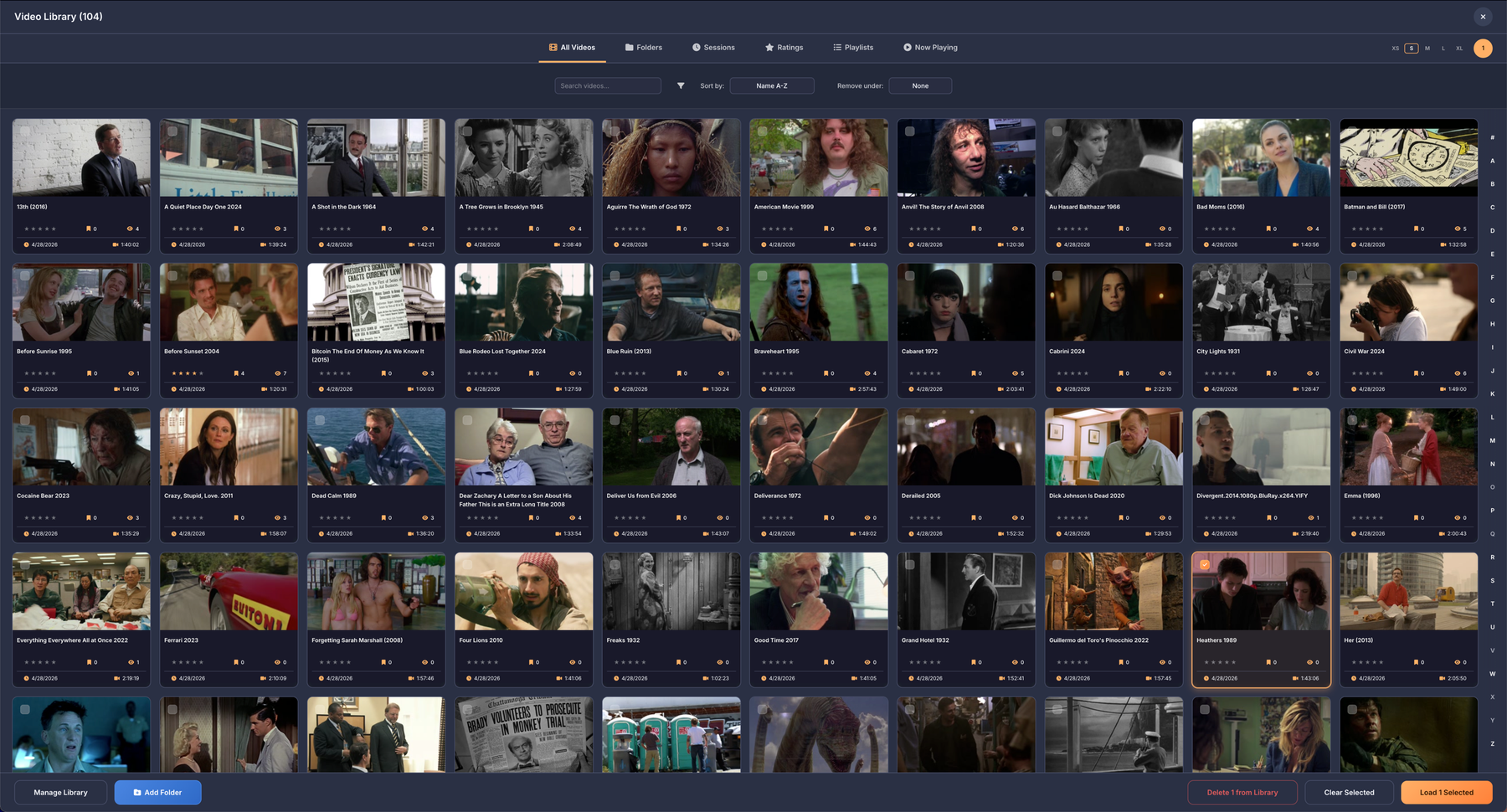
The Library modal is your central hub for managing and organizing your entire video collection. It displays all videos you've imported, organized into tabs:

Library Modal screenshot
Library Modal detail
  • All Videos (complete collection)
  • Folders (grouped by source folder)
  • Sessions (grouped by when you added them)
  • Favorites (grouped by star rating)
  • Playlists (custom collections you create)

Each tab lets you browse, search, sort, and filter your videos with different criteria: you can sort by name, date, rating, watch count, or duration, and filter by rating range, watch count, or video resolution. The Library tracks metadata for every video including custom names you assign, star ratings (0-5), watch counts, last watched date, bookmarked moments, and whether it's currently loaded in the grid or queued up.

From the Library, you can perform actions on individual videos or in bulk: load videos to the grid for playback, create playlists, rename videos with custom titles, view detailed information, and manage your collection. When viewing folders or sessions, you can expand groups to see all videos inside, select multiple videos at once, and load entire groups to fill your grid. The Library also shows you visual indicators of videos currently playing in the grid are marked "Already in Grid," videos waiting in the queue show "Already in Queue," and available videos display a "Load to Grid" button.

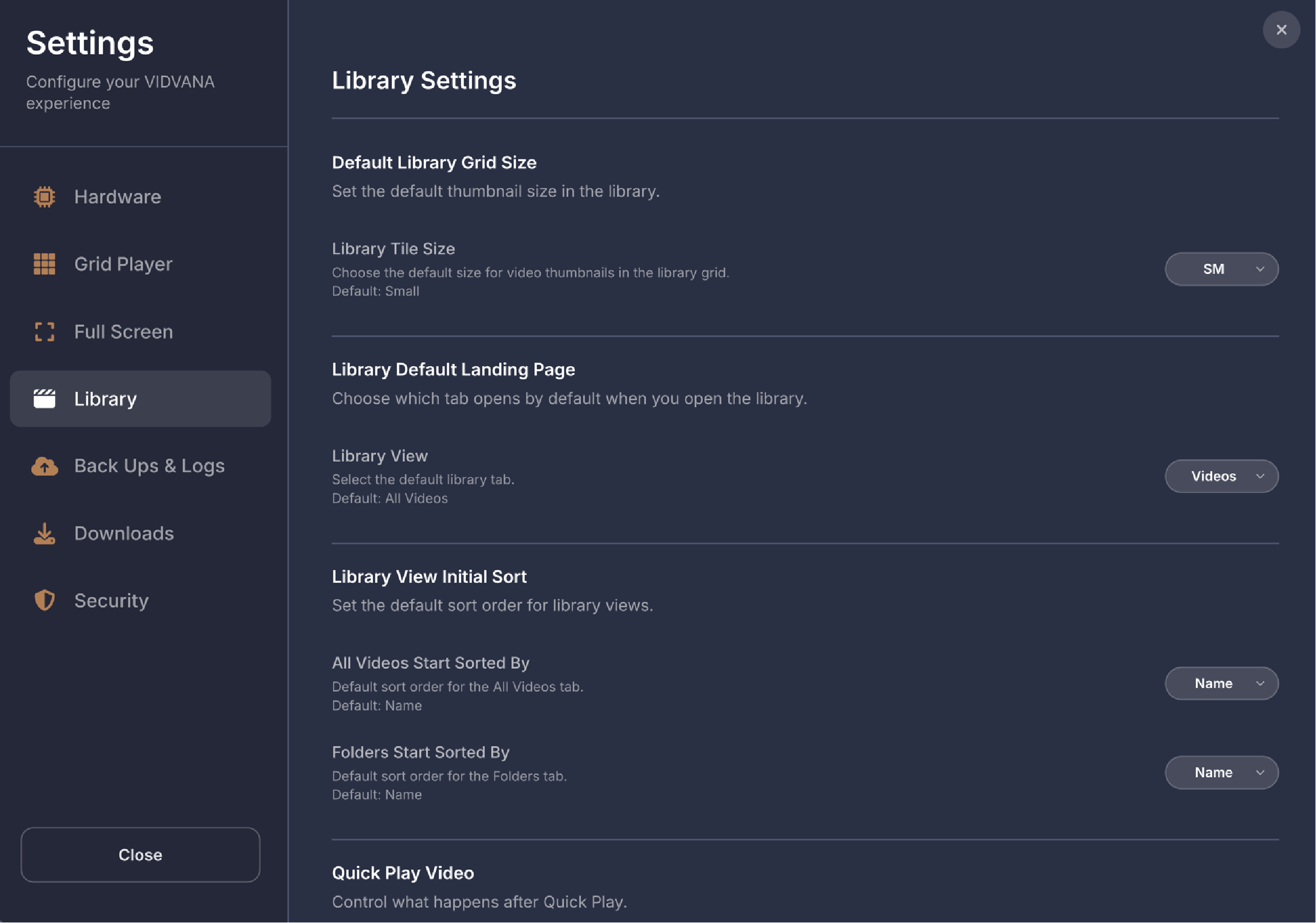
The Library modal includes a tile size dropdown in the top-right corner with five preset sizes (XS, S, M, L, XL) that adjusts how large the video thumbnails and cards appear in the Library grid view. Smaller sizes let you see more videos at once for faster browsing, while larger sizes show more detail including thumbnails, titles, and metadata.

Remove Short Videos

In the All Videos tab, you'll find a "Remove under:" dropdown next to the Sort by control. This feature lets you quickly clean up your library by removing very short video clips that may have accumulated over time - things like video thumbnails, transition effects, test recordings, or social media snippets.

How it works: Select a duration threshold from the dropdown (5 seconds, 10 seconds, 30 seconds, or 1 minute). VidVana will scan your entire library and show a confirmation popup with the count of videos that fall under that duration.

Smart protection: The confirmation popup tells you exactly what will happen before you confirm. If any of the short videos are pinned to your grid, they'll be kept safe and the popup shows how many are protected. Similarly, if any short videos are used in your saved compilations, they'll also be kept to preserve your creative work. The popup also notes how many of the videos are currently playing on your grid - these will be removed from the grid when deleted.

Permanent removal: When you confirm, the videos are removed from your library and added to the excluded list so they won't be re-imported if you scan the same folders again. This action cannot be undone, so review the counts carefully before confirming.

The dropdown always resets to "None" after each use, preventing accidental deletions.

Grid View vs Row View Toggle

When you open the Video Library and expand any folder, session, playlist, or rating group, you'll see a toggle button appear in the controls row (it looks like a grid icon or list icon). This toggle lets you switch between two different ways of viewing your videos:

Grid View vs Row View Toggle option 1 icon

Grid View (default) shows your videos as large tiles with prominent thumbnails, perfect for visually browsing through your collection. Each tile displays the video thumbnail, title, rating stars, bookmark count, watch count, and when you last watched it. This view is ideal when you want to recognize videos by their thumbnails or when you're casually browsing.

Grid View vs Row View Toggle option 2 icon

Row View is a more compact layout that displays videos in a two-column grid with smaller thumbnails and all the information laid out horizontally in each row. The thumbnail appears on the left, followed by the title (which can wrap to two lines), and then icons showing your rating, bookmarks, watch count, the date you added it, and the video duration - all on one line. This view is perfect when you need to quickly scan through many videos in a folder to find something specific, or when you want to see more videos on screen at once. Your view preference is automatically saved, so when you close and reopen folders, they'll display in whichever view you last selected.

Folder Name vs Full Path Sorting

In the Folders tab, you'll see a toggle button that switches between "Full Path" and "Folder Name" modes. This control helps you organize and find folders more easily based on how you think about them:

Folder Name vs Full Path Sorting option 1 icon

Full Path Mode (default): Sorts your folders by their complete file path from the drive down to the folder name. This groups folders that are in the same parent location together, similar to how Finder or File Explorer shows them. For example, all folders inside "/Videos/Movies/" will appear together alphabetically. The folder row displays the complete path so you can see exactly where each folder lives.

Folder Name vs Full Path Sorting option 2 icon

Folder Name Mode: Sorts all your folders alphabetically by just their folder name, ignoring where they're located in your file system. This is incredibly useful when you know the name of the folder you're looking for but don't remember where it's stored. The folder row shows just the folder name in the title with the drive name displayed underneath, so you can still tell similar folders apart. When you sort by name in the title bar, clicking the column header will sort based on whichever mode is currently active.

Group by Drive

In the Folders tab, you can group your videos by the drive they're stored on instead of by folder. This is useful if you have videos spread across multiple external drives or storage locations. Click the server icon button (next to the Full Path/Folder Name toggle) to switch to drive view — your videos will be organized into collapsible groups based on which drive they live on. Click a drive row to expand it and see all videos from that drive. You can select all videos on a drive at once using the checkbox, or use the arrow button to load them all into your grid. The drive grouping option only appears when you have videos on two or more different drives.

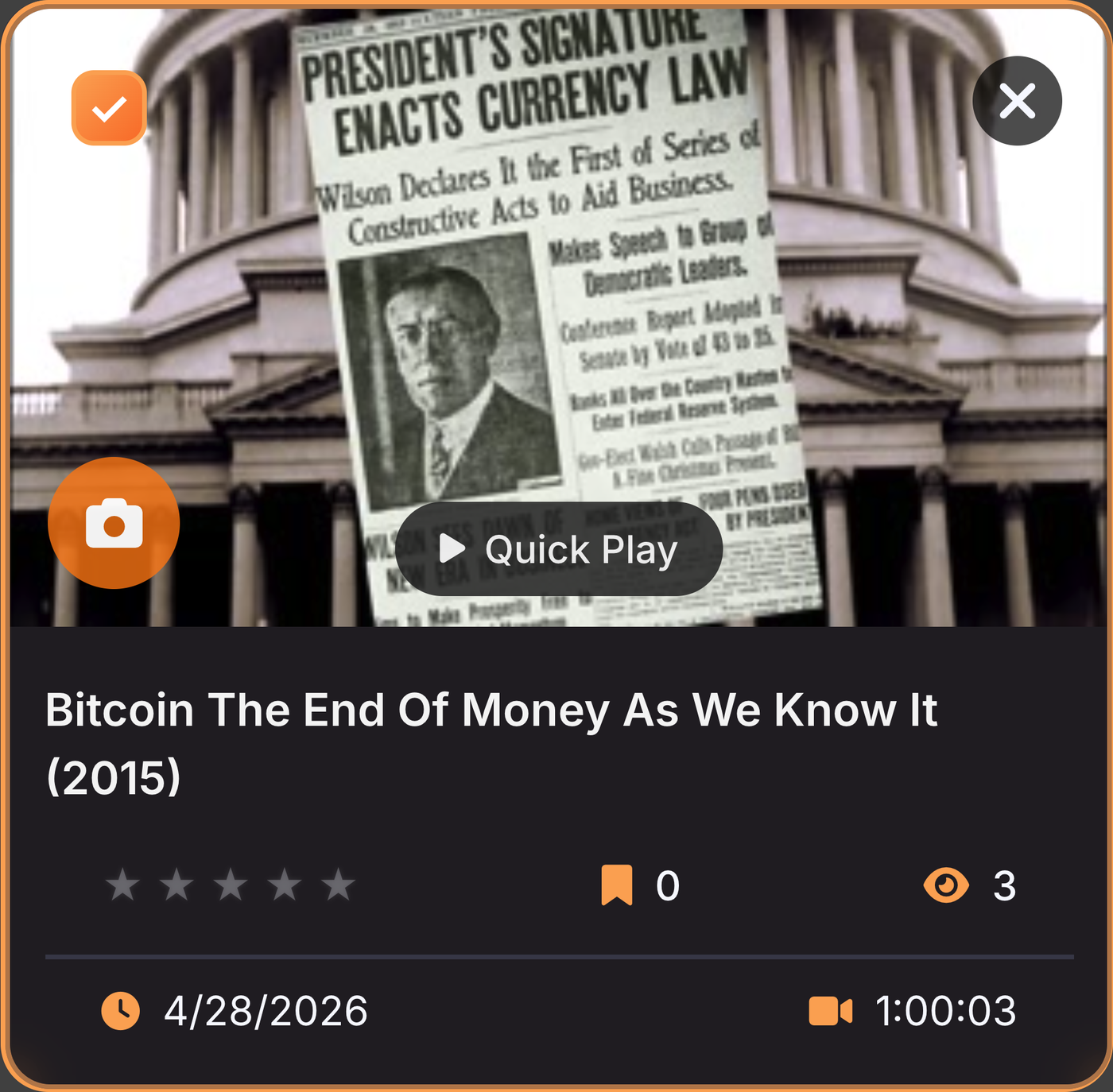
Anatomy of a Video Card

Every video in your Library is displayed as a card showing key information at a glance. The card layout changes depending on whether you have videos playing. From the Landing Screen, cards show a Quick Play button for instant viewing. Once videos are loaded and playing, cards show Load to Queue and Play Fullscreen buttons instead.

Anatomy of a Video Card screenshot

Thumbnail

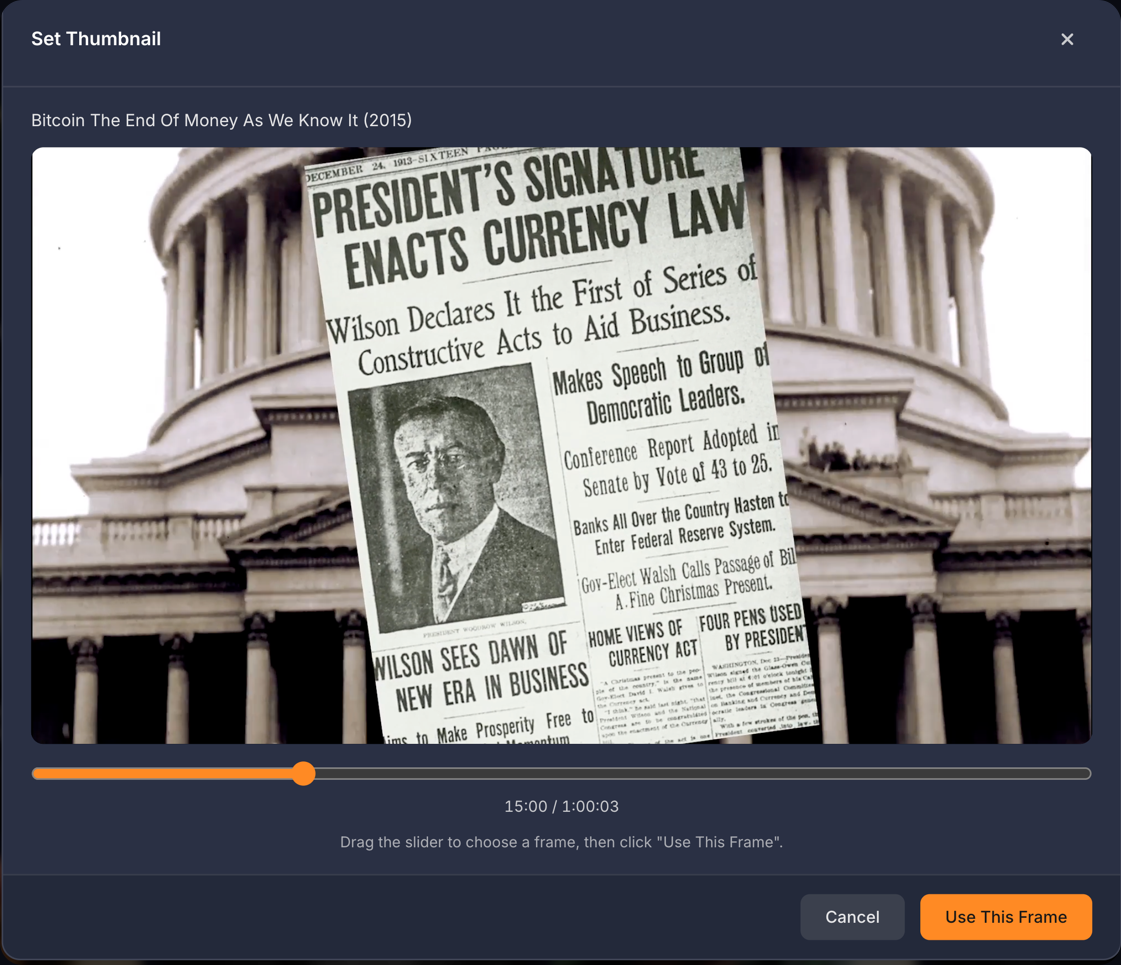
The large image area shows a preview frame from your video. Hover over it to see a play overlay. When browsing from the Landing Screen, a Quick Play button appears on hover. Click it to instantly watch that video without loading it to the grid.

Title

The video's display name appears below the thumbnail. Click the title to open the Rename modal, where you can assign a custom name without changing the actual file on your computer. The modal shows the original filename for reference, lets you type a new name, and includes a reset button to revert to the original. Your custom names are saved and encrypted with your library data.

Metadata Row

Below the title, you'll see:

Metadata Row screenshot
  • Star Rating: Your rating from 0 to 5 stars (click to change)
  • Bookmark Count: Number of moments you've saved in this video
  • Watch Count: How many times you've played this video

Stats Row

Below the metadata, you'll see:

Stats Row screenshot
  • Last Watched: When you last viewed this video (or date added if never watched)
  • Duration: Total length of the video

Action Buttons

When browsing within the app with videos playing in the grid, each card shows two buttons:

  • Load to Queue: Adds this video to your current playback rotation
  • Play Fullscreen: Immediately plays this video in fullscreen mode and adds to the queue

Selection Checkbox

In the top-left corner, a checkbox lets you select videos for bulk actions like loading multiple videos at once or creating playlists.

Delete Button

The X button in the top-right corner removes the video from your library. The file stays on your computer.

Now Playing Tab Differences

When viewing the Now Playing tab, cards show a simplified layout:

  • Status Badge: Replaces action buttons. Displays whether the video is Playing (with tile number), Pinned, Fullscreen, or Queued.
  • Remove Button: Replaces the Delete button. Removes the video from your current session without deleting it from your library.

Unavailable Videos

If a video's source drive is disconnected, a warning badge appears on the card. The thumbnail dims and the card becomes non-interactive until the drive is reconnected.

The Library is persistent and encrypted - everything you add, rate, bookmark, rename, or organize is saved locally on your device and protected by your PIN. It's designed to grow with your collection, handling thousands of videos with efficient filtering and search, and serves as the foundation for all other features like QuickPlay (which loads videos based on rating/recency/watch count), compilations (which pull from your bookmarked moments), and the Favorites modal (which lets you bulk-load highly-rated videos). The Library essentially transforms VidVana from a simple video player into a full content management system for your personal collection.

Loading Videos to the Grid

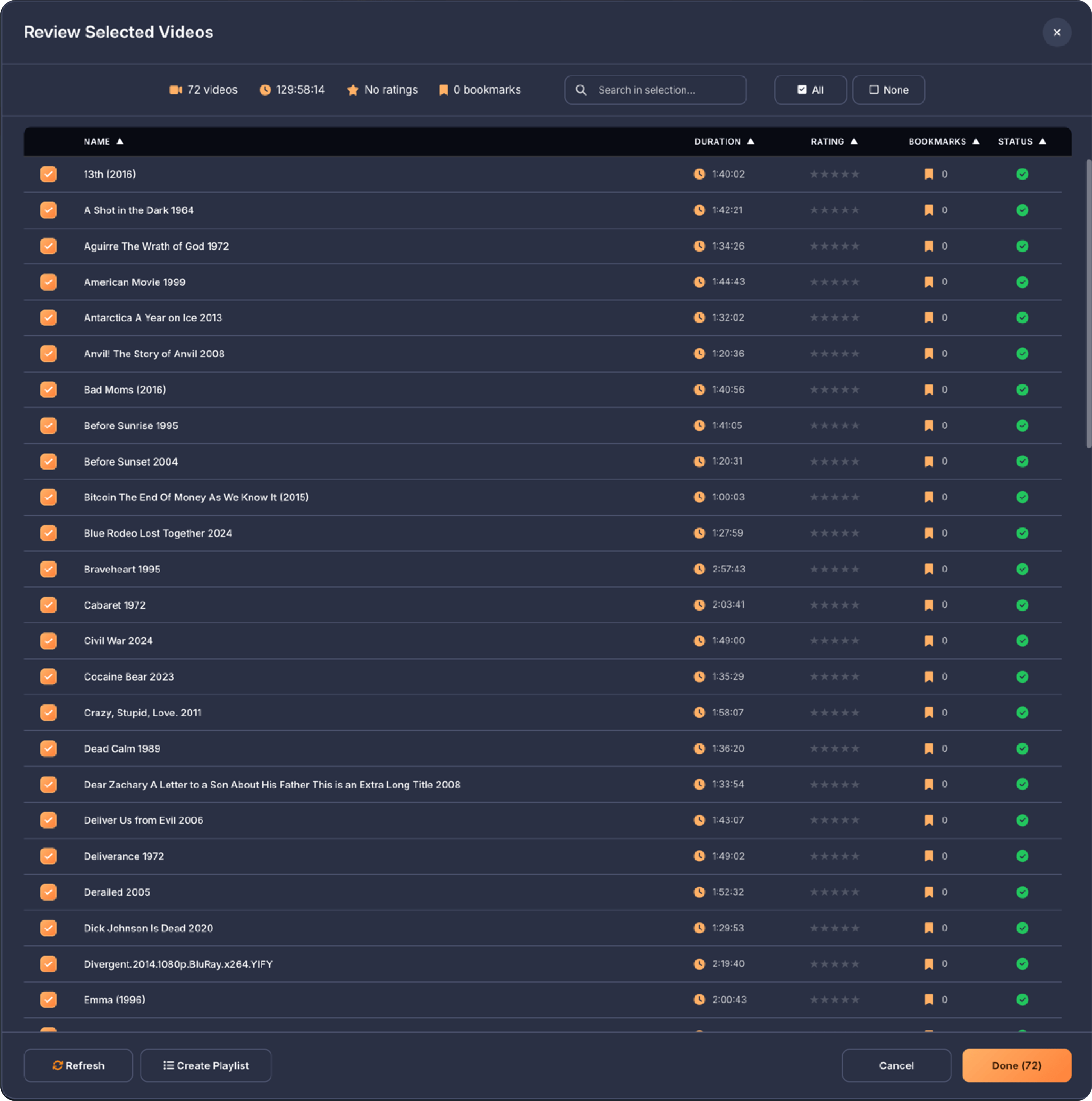
To load videos, you click on individual video cards to select them, checkboxes appear and selected cards highlight in orange. Videos that are already playing in the grid or waiting in the queue cannot be selected (they're greyed out and un-clickable). You can select as many available videos as you want across different tabs and groups, and the "Load Selected" button in the footer and in the upper right menu shows how many you've selected. If you're searching or filtering, two buttons appear: "Add Search Results" lets you bulk-select all matching videos to add to your current selection, while "Add to Playlist" lets you create a new playlist directly from the search results without needing to select them first. Once you've selected your videos, clicking "Load Selected" triggers a check: if you have fewer than 4 videos total (including what's already in the grid), a warning modal pops up explaining you need at least 4 videos for a 2x2 grid (which is the minimum grid initial load size), with options to "Add More Videos" or "Continue Anyway." If you continue or already have enough videos, the Review Modal opens showing all your selected videos along with stats like total count, duration, average rating, and bookmark count.

Review Selected Videos

If you continue or already have enough videos, the Review Modal opens showing all your selected videos along with stats like total count, duration, average rating, and bookmark count.

Review Selected Videos screenshot

The modal checks file availability for each video and marks any missing files in orange with an unavailability reason. Inside the Review Modal, you can search through your selection, sort by name/duration/rating/bookmarks (this only changes the display order, not the load order), and use "All" or "None" buttons to quickly check or uncheck all videos. You can also manually uncheck individual videos you don't want to load. If you click "Cancel," the Review Modal closes and restores your original selections from before you opened it, discarding any changes you made inside. You're back at the Library modal where you can continue selecting or unselecting more videos. If you click "Done," the app checks if any selected videos are unavailable - if some are missing, it shows a warning popup letting you cancel or proceed with only the available videos. If you proceed (or if all videos are available), and if you have more than one video selected and the playlist popup setting is enabled, it asks if you want to save this selection as a playlist for future use. Whether you save a playlist or skip that step, the app then checks if any videos are on network drives and shows a network mode recommendation if needed, loads all the checked videos into your grid and queue, closes both the Review Modal and the Library modal, and shows a notification confirming how many videos were loaded successfully.

Grid View

The Grid Player

The grid in VidVana is designed to let you watch and control multiple videos at the same time, all on one screen. Think of it like a live, interactive TV guide for your own video library - every tile in the grid is like a TV channel that's always playing. This setup makes it easy to quickly scan through a big collection, spot something that catches your eye or you're in the mood to watch, and jump straight into fullscreen to watch it in detail. You can move between videos instantly, double-clicking any tile to bring it front and center, then exit fullscreen with a double click or clicking the X button in the upper right corner and pop right back to the grid to see what else is happening.

The main point of the grid is to help you find videos of interest quickly without constantly opening and closing files or tabs. By showing you lots of videos at once, the grid allows you to preview, compare, and interact with your entire collection in real time. If you see a video you like, you can pin it to keep it from changing, swap random new videos into empty tiles, and adjust the layout or grid size at any time. This makes browsing and discovery not just faster, but actually enjoyable. Instead of digging through folders or menus, everything you need is playing right in front of you, and you're always just a click away from jumping into anything that grabs your attention.

Available Grid Sizes

Choose from six flexible layouts to match your screen size and viewing preference:

Available Grid Sizes screenshot
2×2 (4 tiles)
2×3 (6 tiles)
3×3 (9 tiles)
3×4 (12 tiles)
4×4 (16 tiles)
5×5 (25 tiles)

The Grid Tiles

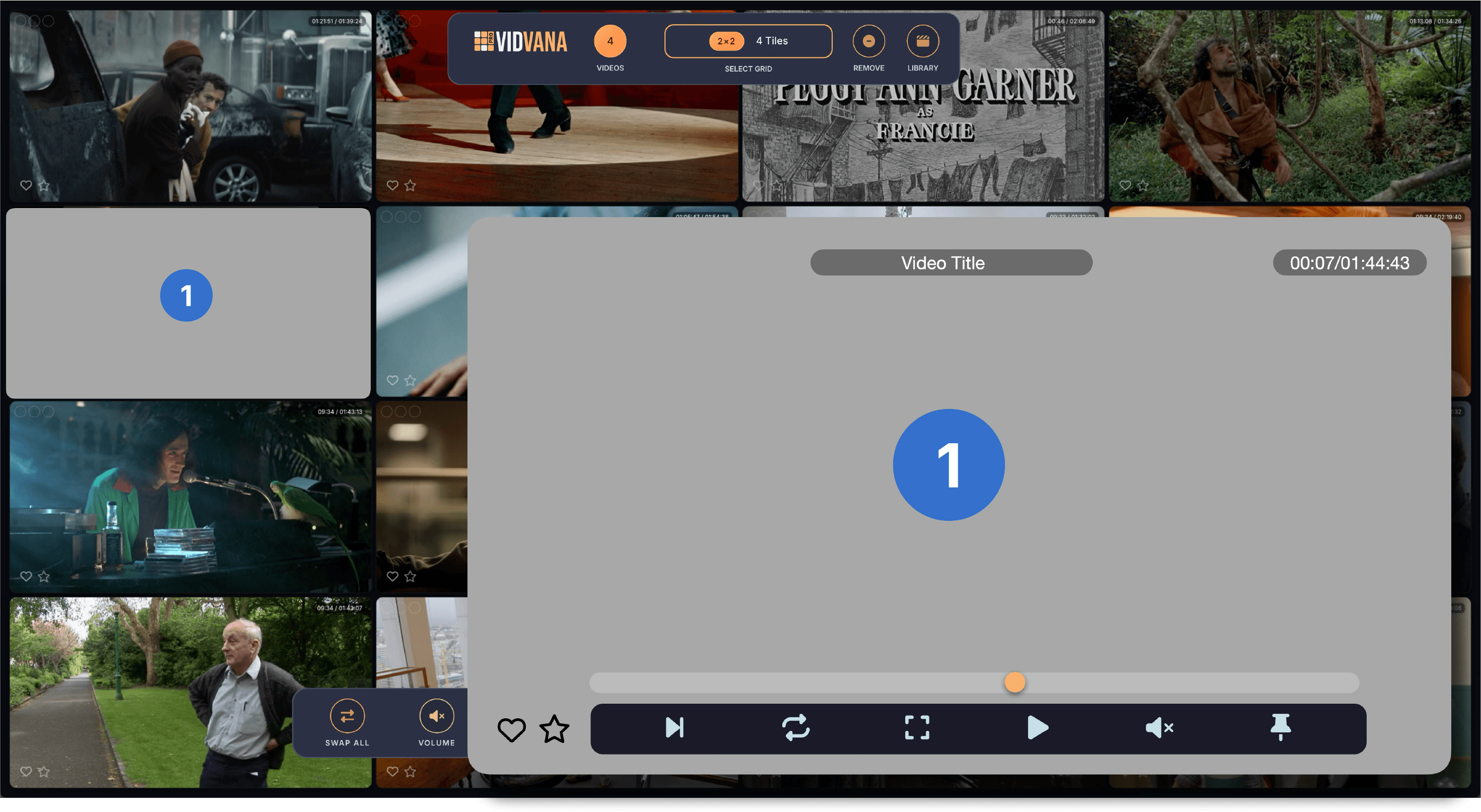
Each video tile becomes fully interactive when you hover over it. This triggers the tile's HUD (Heads-Up Display), a control bar that appears at the bottom of the tile. The HUD lets you control just that tile while the rest of the grid keeps playing.

The Grid Tiles screenshot

Always-Visible Elements

These appear on every tile without hovering:

  • Status Indicators (top-left): Three small circles that light up to show sound on/off, pinned status, and paused status.
  • Duration (top-right): Shows the video's current time and total length.
  • Heart (bottom-left): Click to mark as a favorite. Favorited videos play 3× more often during random rotation.
  • Star (bottom-right): Click to rate from 0 to 5 stars. Your rating appears as a small badge.

On Hover

Title: The video name appears at the top of the tile.

Scrubber: A timeline bar appears above the HUD. Drag it to seek to any point in the video.

HUD Buttons (left to right)

The HUD control bar provides quick access to these playback functions:

HUD Buttons (left to right) screenshot
  • Next: Skips to the next video in your rotation. The current video returns to the queue.
  • Restart: Starts the current video over from the beginning.
  • Fullscreen: Opens this video in fullscreen mode for focused viewing.
  • Pause/Play: Pauses or resumes playback for this tile only.
  • Sound: Toggles audio on or off for this tile. Other tiles remain unaffected.
  • Pin: Locks this tile so it won't rotate when videos swap. Pinned tiles show a thumbtack indicator in the status area.

Quick Actions

Double-click anywhere on a tile: Instantly opens that video in fullscreen mode.

This system turns each tile into its own fully-featured player, making discovery and navigation across dozens of videos lightning fast.

The Bottom Menu

The bottom menu is your command center for controlling the entire grid at once. Located at the bottom of the screen, this persistent control bar gives you instant access to global playback controls, grid management, and quick actions that affect all tiles simultaneously. Instead of adjusting each video individually, these buttons let you control your entire viewing experience with a single click.

The Bottom Menu screenshot

Swap All

Swap All icon

When you click the "Swap All" button in VidVana, the system goes through your queue and fills every unpinned tile in your video grid with the next video in line from that queue. It does not pick videos at random for each tile - it simply cycles through the queue in order, making sure not to repeat any videos already showing. If you have pinned any tiles, those videos will stay put and not be changed, while the rest update to the next videos in the list.

This feature is useful for quickly refreshing your grid with new queued content in a way that's both fast and controlled. You can rely on it to work through your entire loaded collection systematically, always showing you something new from your library without needing to pick each video one by one. The system gives extra weight to your favorited videos when the heart icon is selected for a video in a tile when building the queue, so you'll naturally see your favorite content appear more often as you use Swap All. This makes discovering and previewing your collection easy, while giving you control over which videos stay on screen.

Volume

Volume icon

The global volume button in the bottom menu controls the master sound for all video tiles on your grid. When you adjust this volume, it changes the sound level for every video at once, letting you quickly raise or lower the overall playback without needing to touch each tile individually. There's a global volume slider next to the button so you can fine-tune the exact loudness. The increments for adjusting volume - whether you're using arrow keys or clicking the slider - are tied to the "Grid Volume Increment" you set in the app's Settings. For example, if you pick 10%, each nudge will move the master volume up or down by ten percent, so it's easy to find your ideal level.

The volume button itself has some useful features: if you double-click it, the system instantly mutes all videos, cutting all sound at once. Double-clicking again restores the previous volume level you were using before muting. This makes it quick to go completely silent when you need to, then return to normal playback in a flash. This feature is perfect for anyone who likes to watch many videos at once for browsing or quick overview, or for those moments when you want to sample several videos together without manually muting each one.

With VidVana's global volume button, you get simple, fast control over the total sound of your entire video wall, allowing you to keep the experience comfortable, responsive, and efficient - especially if you often move between different listening environments, use VidVana for previewing lots of content, or just want to keep the noise down with a single click.

Play All

Play All icon

The "Play All" button (which changes to "Pause All" when videos are playing) is a global control that toggles between playing and pausing every active video in your grid at the same time. When you click this button, the app checks whether your videos are currently playing or paused. If they're playing, clicking the button will pause them all in sync. If they're paused, clicking it will resume playback for every video at once. The button's icon and label swap between "Play All" and "Pause All" depending on the current state, so you always know what action you're about to take.

This global play/pause control keeps all your tiles coordinated. It's especially useful for users who want to quickly stop everything (for a phone call, a break, or to refocus on one video), then resume from exactly where they left off across the whole grid. Instead of clicking pause on each individual tile, you have one simple button that instantly stops or starts playback everywhere. The menu updates to always reflect whether you're in play or pause mode, and VidVana manages everything cleanly in the background, so each video picks up right where it left off - no lost progress, missed scenes, or interruptions in your organized video wall.

Restart All

Restart All icon

The "Restart All" button in the bottom menu instantly restarts playback for every video currently loaded in your grid. When you click this button, VidVana resets the playhead (current time) of all your active video tiles back to the beginning, so every video starts over from zero seconds. This happens simultaneously for all tiles, letting you easily rewatch a set of videos together in sync or return to the start of a playlist or grid arrangement with a single click.

Restart All works even if some tiles are still loading or buffering; the code listens for each video's metadata to finish loading, then automatically jumps them to the start when ready, so no video gets left behind. If you have pinned tiles or specific arrangements, all videos - including those - will have their progress reset as part of this action (unless you're actively dragging the timeline on a tile, which the app protects from accidental resets).

This global restart feature is great for moments when you want to relive a set of scenes, line up all your videos for a binge session, or reset the mood for a new viewing block - without having to manually rewind each video one by one. It keeps your whole video wall coordinated and saves time for anyone using VidVana's multi-video features to the fullest.

Randomize

Randomize icon

The Randomize button reshuffles your entire video collection's playback order and refreshes your grid with a new lineup drawn from that freshly shuffled order. When you click it, VidVana shuffles the list of all playable videos (using a random shuffle) and rebuilds the playback queue to use this new, randomized order. The grid then updates: each unpinned tile is assigned a new video from the shuffled play list, ensuring you get a new, unpredictable mix of videos showing up in your grid. If there are more tiles than videos, it shuffles and redistributes what's already visible.

Pinned tiles are respected - if you have chosen to pin certain videos, those tiles stay exactly as they are and don't change, even after you hit Randomize. This lets you keep a few favorites locked in, while the rest of the grid constantly refreshes and offers new surprises. The system also ensures you don't get duplicates in the same grid refresh.

Randomize is useful for quickly mixing up what you're watching or just keeping things fresh so when you view your grid, you get a different lineup. It's more powerful than just swapping through the queue - it's a truly random redo of what appears across your entire grid (other than on pinned tiles), making exploration and discovery fast and effortless.

Swap Timer

Swap Timer icon

The Swap Timer button in the bottom menu controls how often unpinned tiles automatically swap to their next queued videos. Each tile swaps independently based on its own timer, creating a natural staggered rotation rather than all tiles changing at once. When you click the button, a panel opens with a slider that shows the current time setting in minutes. You can drag the slider to adjust the swap interval - this becomes the new timing for tiles as they swap. The slider range is determined by settings you configure separately in the Settings. Pinned tiles never swap.

If you've enabled the Allow Persistence option in Settings, the slider will also have a No Swap position at the far left marked with an infinity symbol, which turns off automatic swapping completely so videos stay on their tiles permanently. You can also double click the Swap Timer button to instantly reset the slider to either the minimum time or to No Swap mode depending on your settings.

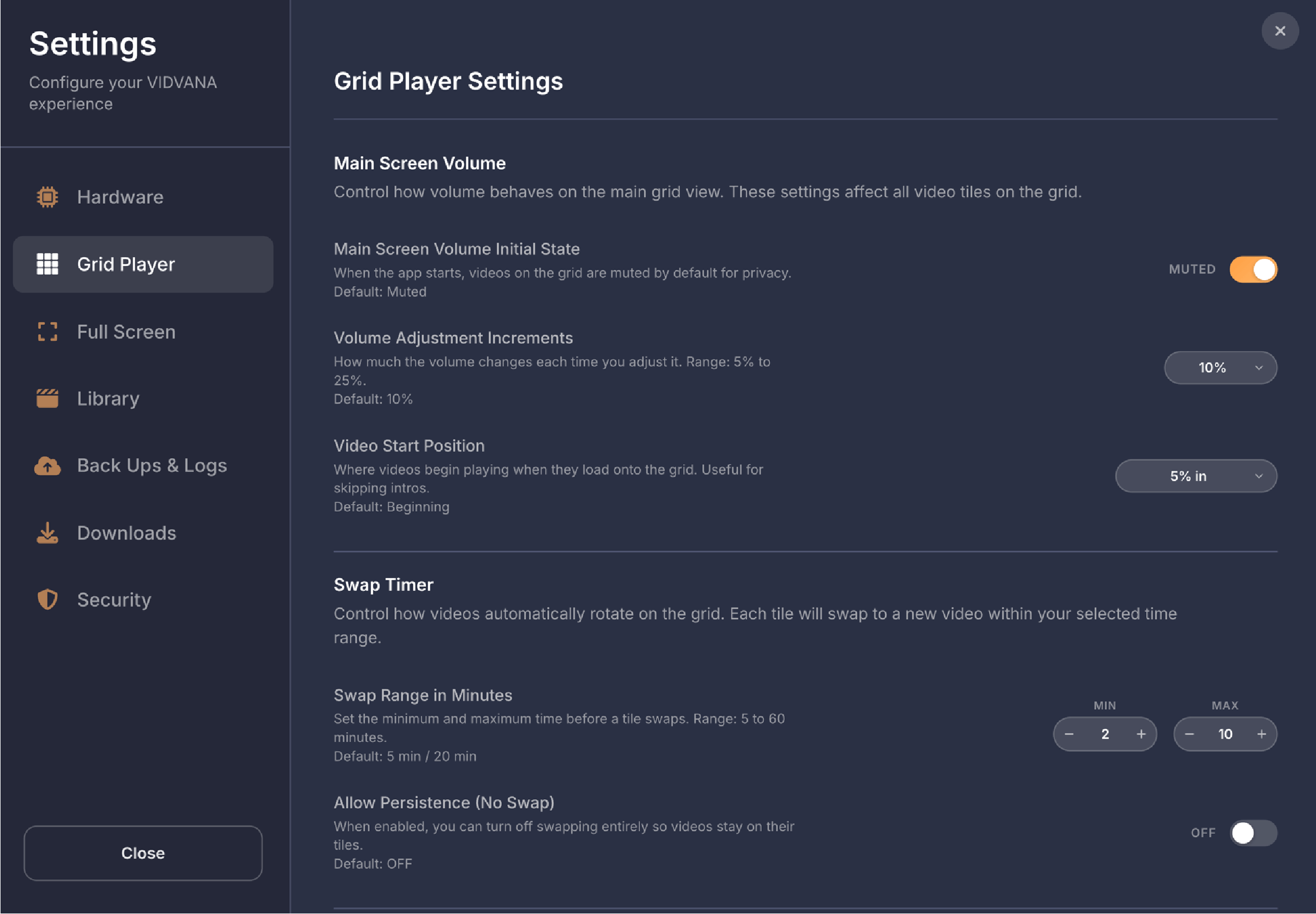
To configure the time range that the slider allows, open the Settings Modal and go to Grid Player Settings. In the Swap Timer section, you'll see controls to set the Swap Range in Minutes with separate MIN and MAX values. Below that is the Allow Persistence toggle which when turned on adds the No Swap option to your slider.

Scrub

Scrub icon

The Scrub button in the bottom menu lets you temporarily jump all videos on the grid backward or forward in time from their current positions. When you click the button, a panel opens with a slider that starts at the center zero position. When you drag the slider left, it jumps all videos backward by that amount of time, and when you drag it right, it jumps all videos forward. The slider shows the offset time as you drag it.

As you drag the slider, all videos jump to their reference position plus or minus the offset you're dragging to. When you release the slider or move your mouse away from it, the slider automatically snaps back to the center zero position, but the videos stay at whatever time you scrubbed them to. This lets you quickly scan through all your videos at once to find interesting moments.

If a video reaches its end during the scrub (for example, scrubbing forward 10 minutes on a video that's only 8 minutes long), that video will pause at its final frame while the other videos continue playing normally.

The range of how far back and forward you can scrub is controlled in the Settings Modal under Grid Player Settings in the Scrub section. There you can adjust the Scrub Range in Seconds with separate BACK and FWD values.

Speed

Speed icon

The Speed button in the bottom menu controls the playback speed for all videos on the grid at once. When you click the button, a panel opens with a slider that lets you adjust how fast or slow the videos play. The slider shows the current speed value as you drag it. When you drag the slider, it has magnetic snapping built in so it automatically locks onto common speed values like 0.25x, 0.5x, 0.75x, 1x, 1.25x, 1.5x, 1.75x, 2x, and so on up to 4x, making it easier to hit standard speeds.

When you change the speed, it immediately affects all video tiles on the grid simultaneously. You can also double click the Speed button to instantly reset the speed back to 1x normal speed. The range of speeds available on the slider is controlled in the Settings Modal under Grid Player Settings in the Speed section. There you can set the Speed Range with separate MIN and MAX values.

Cover

Cover icon

The Video Fit button in the bottom menu controls how videos are displayed within their tiles on the grid. This button toggles between two modes called Cover and Contain. When you click the button, it switches between these two modes and immediately applies the change to all video tiles at once.

In Cover mode, videos are zoomed to completely fill their tiles, which means parts of the video might be cropped off the edges if the video's aspect ratio doesn't match the tile's shape. This ensures there are no black bars and the tile is always completely filled with video.

In Contain mode, videos are scaled to fit entirely within their tiles without any cropping, which means you'll see the complete video frame but might have black bars on the sides or top and bottom if the video's aspect ratio doesn't match the tile.

Fullscreen

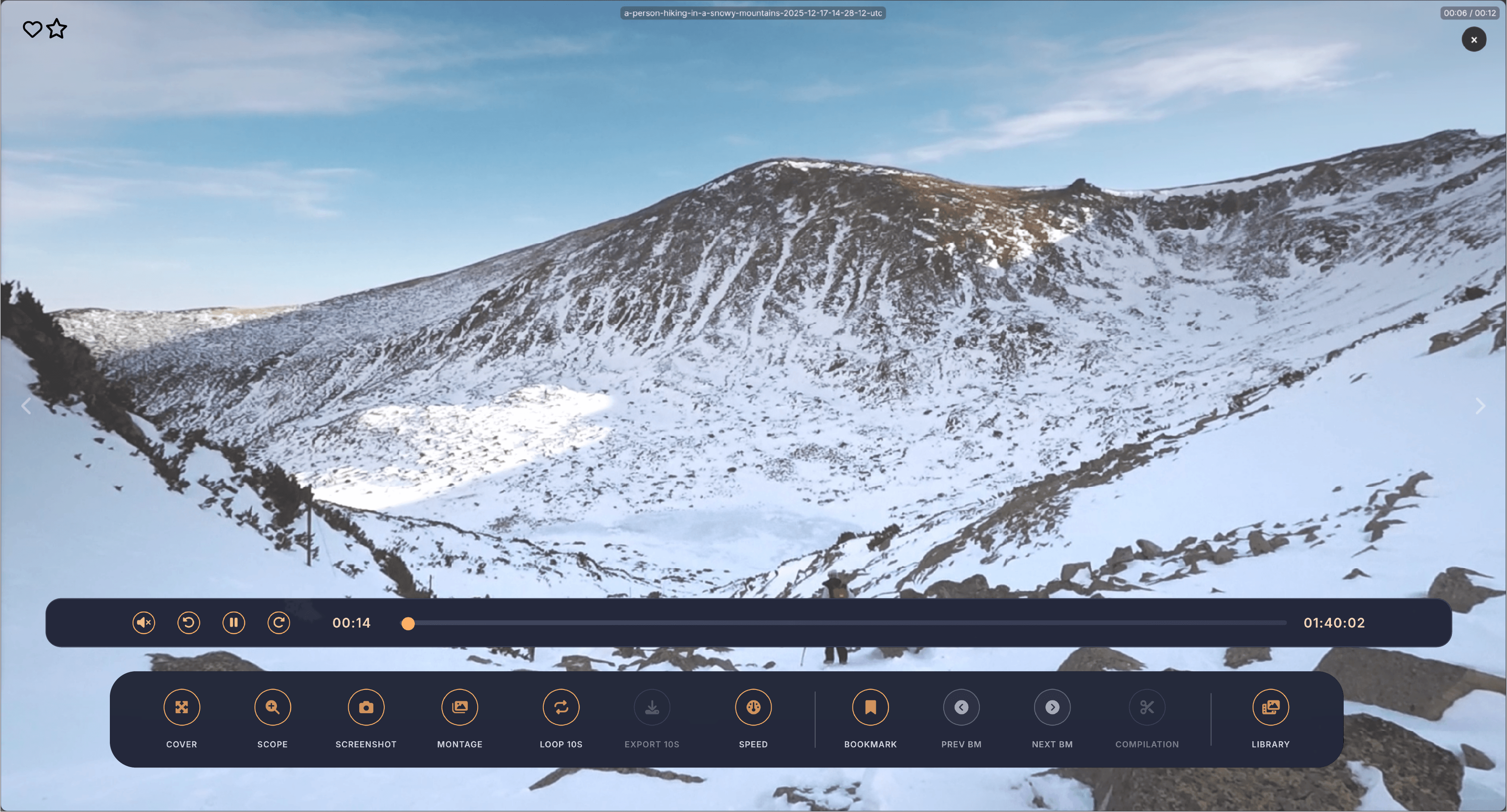
Fullscreen View

Fullscreen mode in VidVana fills your entire screen with a single video and displays a special interface menu that contains all the playback controls and information. When you enter fullscreen, the video you selected takes over the screen, and will automatically restart from the beginning regardless of where it was playing in the grid (unless you decide to continue play times currently in the grid from the Settings), and all other videos on the grid are paused. The menu or fullscreen HUD automatically appears when you move your mouse toward the bottom of the screen into a hover zone, and disappears when you move your mouse away from that area. After about half a second of no mouse movement, the mouse cursor itself hides to give you an unobstructed view.

Fullscreen View screenshot

At the top left of the screen, you'll see two icons. The heart icon shows whether this video is marked as a favorite, and you can click it to toggle the favorite status on or off. Right next to it is the star icon which displays the current rating for the video, and clicking it opens the rating modal where you can assign a star rating from zero to five stars in half star increments.

At the top of the fullscreen window is the video title which shows the filename or any custom name you've assigned to the video in your library. The title appears when you move your mouse and automatically hides after about two seconds of no mouse movement.

On the left and right sides of the screen in the middle are large chevron arrow buttons for navigation. The left arrow takes you to the previous video that's currently loaded on your grid tiles, and the right arrow takes you to the next video on your grid tiles. These arrows cycle through whichever videos are actually playing on your tiles at that moment. When you navigate to a different video using the arrows or arrow keys, that video also restarts from the beginning (unless you decide to continue play times currently in the grid from the Settings).

In the top right corner is a small X button that closes fullscreen mode and returns you to the grid view. You can also press the Escape key to exit fullscreen at any time, or double click anywhere on the video to exit fullscreen and return to the grid. When you exit fullscreen, the video continues playing on its tile from wherever you left off in fullscreen, and all the other videos on the grid resume playing as well.

At the bottom of the screen, the main HUD panel contains two sections. The bottom section has all the capsule fullscreen control buttons organized into groups, and above that is the timeline section with the playback controls. The timeline section has transport controls on the left side including a volume button, skip back button, a play pause button in the center, and skip forward button. On the right side of the timeline is the scrubber which shows the current playback time on the left, a draggable track in the middle, and the total video duration on the right. The capsule buttons below the timeline are organized into groups.

The Fullscreen Playbar

The playbar is the transport control section located above the HUD buttons at the bottom of the fullscreen view. It provides direct control over video playback with intuitive buttons for volume, skip back, play/pause, skip forward, and a timeline scrubber for precise navigation through your video.

The Fullscreen Playbar screenshot

Fullscreen Playbar Volume Control

Fullscreen Playbar Volume Control icon

The volume button on the left side of the playbar controls the audio level for the video you're watching in fullscreen. When you click the volume button, a vertical slider panel opens above it showing your current volume level. You can drag the slider up to increase volume or down to decrease volume. The slider goes from zero at the bottom which is muted to one hundred percent at the top which is full volume. As you adjust the slider, a visual indicator shows the current volume level and the video's audio changes immediately. When you double click the volume button itself, it instantly mutes the video.

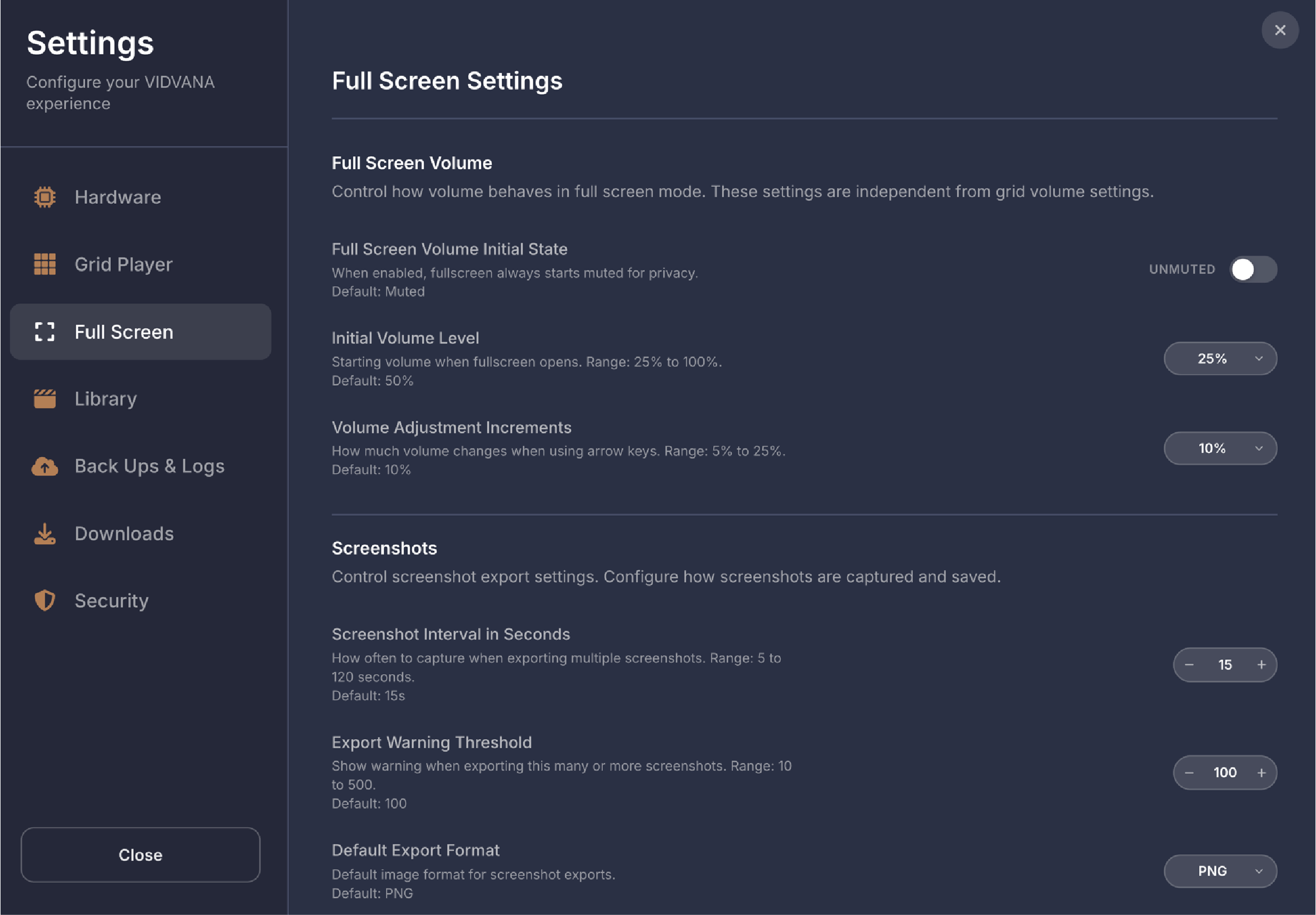
The volume you set in fullscreen is remembered in a session memory, so when you navigate to other videos using the arrow buttons, they all play at the same volume level you set. This fullscreen volume is completely separate from the grid volume. To configure and customize how the volume control behaves, open the Settings Modal and go to Full Screen Settings. In the Full Screen Volume section, you'll find three settings. The Full Screen Volume Initial State toggle controls whether fullscreen starts muted or unmuted. When this is turned on which is the default, every time you enter fullscreen the video starts muted for privacy. When it's turned off, fullscreen starts at your configured volume level. The Initial Volume Level dropdown only appears when the muted toggle is turned off, and it lets you choose what volume fullscreen starts at with different volume options. The Volume Adjustment Increments dropdown controls how much the volume changes when you use the arrow keys on the slider.

Fullscreen Playbar Skip Back Button

Fullscreen Playbar Skip Back Button icon

The skip back button is the circular button with a backwards rotating arrow icon located to the left of the large play pause button. When you click this button, the video jumps backward by a configurable amount of time. The button shows the skip amount in its design.

To configure how far back the button skips, open the Settings Modal and go to Full Screen Settings. In the Skip section, you'll see controls for Skip in Seconds with separate BACK and FWD values.

If you have an active loop running (see Loop Function), skipping backward updates the loop start point to your new position instead of cancelling the loop.

Fullscreen Playbar Pause Button

Fullscreen Playbar Pause Button icon

The circular button in the center of the playbar controls whether the video is playing or paused. When the video is paused, the button shows a play icon which is a triangle pointing right. When the video is playing, the button shows a pause icon which is two vertical bars. Clicking the button toggles between playing and pausing. The button icon automatically updates to match the current state of the video.

Fullscreen Playbar Skip Forward Button

Fullscreen Playbar Skip Forward Button icon

The skip forward button is the circular button with a forwards rotating arrow icon located to the right of the play/pause button. When you click this button, the video jumps forward by a configurable amount of time. If the skip would go past the end of the video, it stops at the end instead.

To configure how far forward the button skips, open the Settings Modal and go to Full Screen Settings. In the Skip section, you'll see controls for Skip in Seconds with separate BACK and FWD values. The forward value can be adjusted from five to sixty seconds in five second increments using plus and minus buttons. The default is fifteen seconds.

If you have an active loop running (see Loop Function), skipping forward updates the loop start point to your new position instead of cancelling the loop.

Fullscreen Playbar Scrubber

The scrubber is the timeline control on the right side of the playbar that lets you navigate through the video. It shows three parts. On the left is the current playback time displayed in minutes and seconds. In the middle is a draggable track with a slider that represents the video's timeline from start to finish. On the right is the total video duration also displayed in minutes and seconds. You can click anywhere on the track to jump to that point in the video or drag the slider to scrub through the video smoothly.

If you've added any bookmarks (see Bookmarks) to the video, they appear as small vertical marker lines on the track showing you exactly where each bookmark is located.

When you seek to a new position using the scrubber, if you have an active loop running (see Loop Function), the loop start point updates to your new position instead of cancelling the loop. The scrubber has no settings to configure as it always represents the full length of the video from zero to its total duration.

The Fullscreen HUD

The HUD (Heads-Up Display) is the row of capsule buttons located below the playbar at the bottom of the fullscreen view. These buttons provide quick access to advanced features like zooming, screenshots, montage creation, looping, speed control, bookmarks, and compilation editing. Each button is organized into logical groups for easy access.

The Fullscreen HUD screenshot

Cover (Fullscreen)

Cover (Fullscreen) icon

The Cover Contain button in the fullscreen bottom menu controls how the video fills the screen. When you click this button, it toggles between two display modes called Cover and Contain. The button shows which mode you're currently in and switches to the other mode when clicked. In Cover mode, the video completely fills the screen which means parts of the video might be cropped off the edges if the video's shape doesn't match your screen's shape, but you won't see any black bars. In Contain mode, the video shrinks to fit entirely within the screen so you can see the full video without any cropping, but this might show black bars on the sides or top and bottom if the video's shape doesn't match your screen. The button label and icon change to show which mode you're in, displaying Cover with an expand icon when in Cover mode and Contain with a compress icon when in Contain mode. You can also press the keyboard to toggle between these modes. This setting only affects the video you're watching in fullscreen and doesn't change how videos appear in the grid view.

Scope

Scope icon

The Scope button in the fullscreen bottom menu activates a zoom and pan tool that lets you examine the video in detail. When you click the Scope button, the feature turns on and the button stays highlighted to show it's active. Once Scope is active, the mouse cursor behavior changes depending on where you position it.

When your mouse is over the video itself, the cursor disappears once you stop any mouse motion to give you an unobstructed view. You can scroll your mouse wheel or trackpad to zoom in up to 2.4x magnification. As you zoom in, a zoom level indicator appears showing the current magnification. When you're zoomed in, you can click and drag anywhere on the video to pan around and see different parts of the frame. The zoom always centers on where your mouse pointer is located when you scroll. To exit Scope mode, you have three options. You can click the Scope button again, you can double click anywhere on the video, or you can use a keyboard command.

Screenshot

Screenshot icon

The Screenshot button in the fullscreen bottom menu opens a modal that lets you export still images from the current video - it creates a pictorial "story" of the video. When you click the Screenshot button, the video immediately pauses. The modal displays a preview of the video at the current time position where you were watching.

Screenshot screenshot

Inside the modal, you have several controls and options. At the top is a scrubber bar with a circular playhead handle and two triangle handles. Dragging the circular playhead below the playbar will scrub through the video and find the exact moment you want. The video preview updates as you drag so you can see exactly where you are. Once you've found your starting point, drag the left triangle handle toward the playhead circle and it will automatically snap to that position. Then drag the playhead circle to find your ending point, and drag the right triangle handle toward it and it will snap to that position as well. The triangles magnetically lock onto the playhead circle when you drag them nearby, making it easy to set precise start and end times. You can also click anywhere on the scrubber bar and the nearest triangle will jump to that spot. There's a play button that lets you preview the selected range if desired.

Below the scrubber you'll see time displays showing the start time, end time, and duration of your selected range. There's a Single Frame toggle button that switches between capturing multiple screenshots at intervals or capturing just one single frame at the playhead position. When Single Frame mode is on, the interval controls are disabled and only the playhead circle is visible.

The "Export Every" field lets you set how many seconds between each screenshot capture, and this value comes from your Settings where you can configure the default interval between five and one hundred twenty seconds. You can adjust this as desired in the portal. Next to it, a "Picture Count" display shows how many screenshots will be captured based on your selected range and interval which you can also adjust in the portal as desired.

The "Export As" section has two dropdown menus. The first lets you choose between PNG or JPG format, and the default format comes from your Settings. The second dropdown lets you choose the image size with options for Match Source, 480p, 780p, 1080p, 1440p, or 4K. The app only allows you to export at resolutions equal to or lower than your source video quality. If you somehow had a higher quality option selected before opening the modal, it automatically resets to Match Source to prevent upscaling.

At the bottom of the Screenshot portal are three buttons. Cancel closes the modal and restores the video to exactly where you left off. Reset returns all settings to their defaults. Export starts the capture process. If you're about to export a large number of screenshots that exceeds the warning threshold you set in Settings, which defaults to one hundred screenshots, a warning popup appears asking you to confirm before proceeding. During export, a progress bar shows the percentage complete and you can cancel at any time. When you close the modal either by clicking Cancel, pressing Escape, or after a successful export, the video returns to the exact time position where you opened the modal and resumes playback if it was playing before, with all playback rates and swap timers restored to their original state.

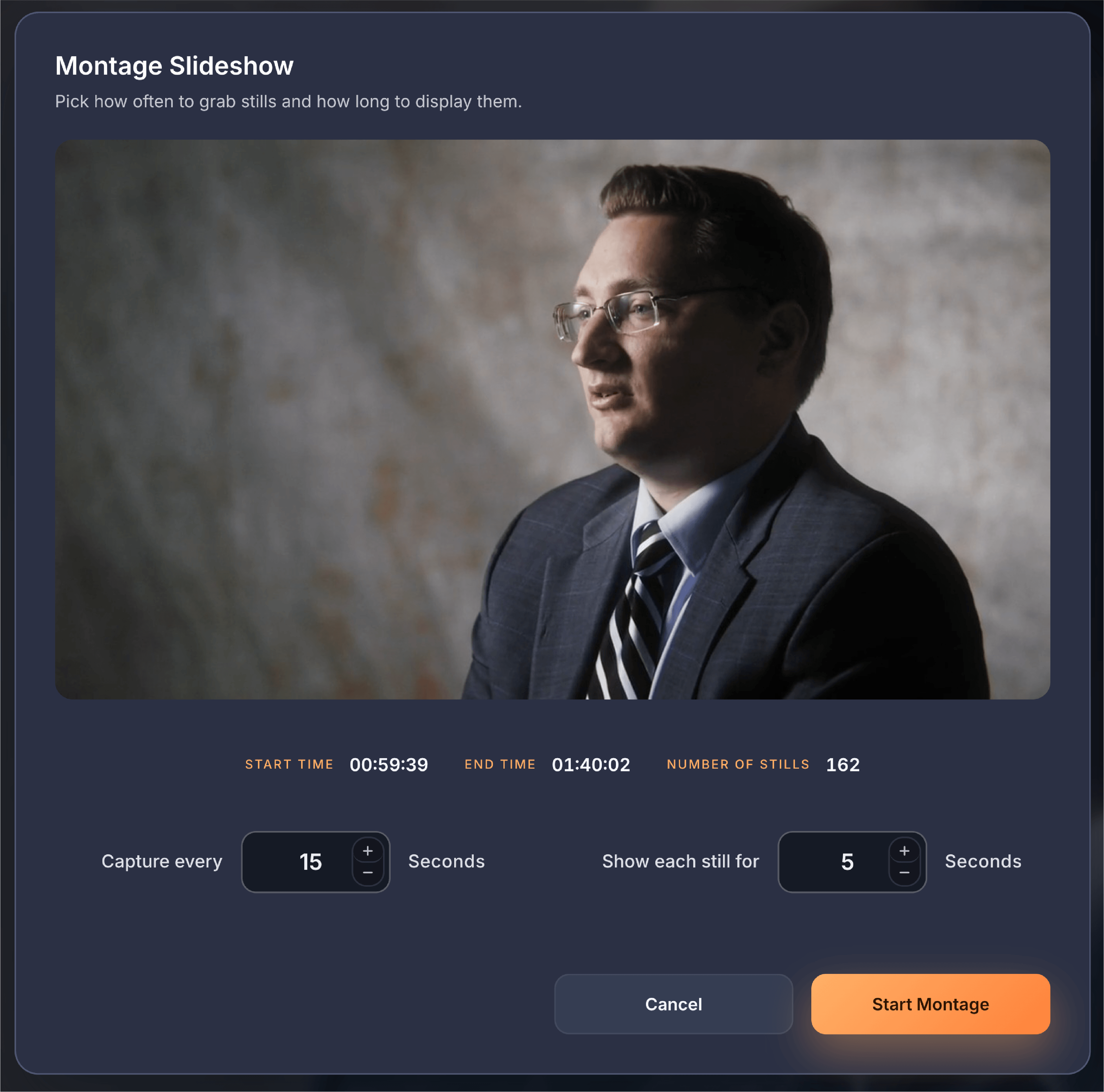
Montage

Montage icon

The Montage button in the fullscreen bottom menu creates a slideshow from still frames captured throughout the video. When you click the Montage button, the video immediately pauses at the current position and a modal opens. At the top of the modal is a preview area showing a still image of the current video frame. Below the preview are three time displays showing Start Time which is where you opened the modal, End Time which is the total video duration, and Number of Stills which calculates how many frames will be captured based on your settings.

Montage screenshot

The modal has two settings. "Capture Every" lets you set how many seconds between each still frame capture, and this value comes from your Settings where you can pre-configure the default capture interval between five and one hundred twenty seconds with a default of fifteen seconds. You can adjust this as desired in the portal. "Show Each Still For" lets you set how long each captured frame displays before fading to the next one, and this value also comes from your Settings where you can pre-configure the display duration between three and thirty seconds with a default of five seconds. You can adjust this as desired in the portal.

At the bottom are two buttons. Cancel closes the modal and returns the video to the exact time position where you opened it. Start Montage closes the modal and immediately begins the slideshow. When the montage starts, a brief preparing montage message appears while the first frame is being captured. During the montage, all fullscreen playback controls are frozen and disabled including play pause, skip buttons, the scrubber bar, speed, volume, loop, and the navigation arrows. The Montage button itself stays highlighted to show the slideshow is active. The video automatically advances through the timeline, capturing still frames at your specified interval, and each frame fades into the next one and displays for your specified duration. If the video reaches the end during the montage, it freezes on the last captured frame.

To stop the montage, click the Montage button again which opens the modal with two options. The Start button is now labeled Update and Resume which lets you adjust the settings and continue the slideshow. The Cancel button is now labeled End Montage which stops the slideshow completely and returns the video to the time position where you canceled it. When you end the montage, all frozen controls become active again and the video is ready to play normally. The montage settings you choose are remembered separately for each video, so when you start a montage on the same video again, it uses your previous settings as defaults.

Fullscreen Loop

Fullscreen Loop icon

The Loop button in the fullscreen playbar lets you continuously repeat a specific segment of the video. You can pre-configure the loop duration in the Settings under Grid Player Settings in the Fullscreen Player section where you'll find a Loop Duration setting that lets you choose anywhere from five seconds to sixty seconds for looping, with the default set to ten seconds.

When you click the Loop button, it activates and the menu button stays highlighted to show loop mode is on. At that moment, the app captures the video's current playback position as the loop starting point. The scrubber handle changes from its normal orange color to white to visually indicate that loop mode is active. Once loop is on, the video plays forward from the start point for the configured duration, then automatically jumps back to the start point and repeats continuously.

If you drag the scrubber to a new position while loop is active, the loop doesn't turn off. Instead, the app updates the loop start point to wherever you moved the scrubber, so the loop continues from the new position. The same thing happens with the skip back and skip forward buttons to the left of the playbar. When you click either button while loop is active, it jumps the video backward or forward and updates the loop start point to the new position instead of cancelling the loop. This makes it easy to find the perfect segment to loop without having to reactivate the feature. To turn off loop mode, click the Loop button again. When loop is active, the Export button next to it becomes enabled and lets you save that looped segment as a video file. When you navigate to a different video using the left or right arrow buttons, loop mode automatically turns off and resets for the new video.

Fullscreen Export Loop

Fullscreen Export Loop icon

The Export Loop button saves the currently looped video segment as a separate video file. This button only becomes active when you have loop mode turned on. When loop is off, the button appears disabled and greyed out. Once you activate loop mode, the Export button lights up and shows it's ready to use. The button label details your current loop time in seconds to match your configured loop duration in the Settings, so if you have loop set to fifteen seconds in Settings, it will say Export 15s. When you click the Export button, the app pauses the video and exports the loop as an MP4 video file using H.264 video codec and AAC audio codec, a fully re-encoded video file that's compatible with all standard video players. After the export completes, the video stays paused at the position where you triggered the export so you can review it or continue watching. If you try to click the Export button when loop mode is off, a warning message appears reminding you to activate loop mode first.

Fullscreen Speed

Fullscreen Speed icon

The Speed button in the fullscreen bottom menu controls how fast or slow the video plays. You can pre-configure the speed range in the Settings Modal under Fullscreen Player in the Speed section where you'll find Speed Range settings that let you set a minimum speed and a maximum speed. The default minimum is set to one times normal speed and the default maximum is set to two times. When you click the Speed button, a panel opens with a slider that shows the current playback speed. You can drag the slider left to slow down the video or right to speed it up within your configured range.

The slider has magnetic snapping built in so it automatically locks onto common speed values, making it easier to hit standard speeds without having to be precise. The speed change only affects the video you're currently watching in fullscreen. When you navigate to a different video using the left or right arrow buttons, the speed automatically resets back to normal 1X speed for the new video.

Fullscreen Bookmarks

Fullscreen Bookmarks icon

Bookmarks let you mark specific moments in a video so you can jump back to them later and use them to create compilations. Bookmarks are only available in fullscreen mode, not on the grid. When you press the B key or click the Bookmark button in the fullscreen bottom HUD menu, the app saves the current video timestamp as a bookmark. A notification appears confirming the bookmark was saved and shows the timestamp. Bookmarks are permanently saved to your library with encryption, so they persist across sessions and are available whenever you watch that video again.

When you have bookmarks for a video, small triangle shaped markers appear on the playbar scrubber showing where each bookmark is located. The markers are positioned along the scrubber track to match their timestamps in the video. You can click any bookmark marker to instantly jump the video to that moment. When you click a marker, it becomes highlighted in orange to show it's the active bookmark. To navigate through your bookmarks you can use the assigned keyboard shortcuts or use the Previous Bookmark and Next Bookmark buttons in the fullscreen bottom menu. When you're at the beginning of the video and press previous bookmark, it wraps around to the last bookmark. When you're at the end and press next bookmark, it wraps to the first one.

You can adjust a bookmark's position by dragging its marker left or right along the scrubber. When you start dragging, the marker enlarges slightly and the video seeks to follow your drag position in real time so you can see exactly where you're moving it. As you drag horizontally, the playhead on the scrubber updates to match. When you release the drag, the bookmark saves at the new position and a thumbnail is generated for that timestamp. To delete a bookmark, drag its marker upward away from the scrubber. When you drag up, a "Release to Delete" badge appears above the marker and the marker turns red to show it's in delete mode. If you release while in delete mode, the bookmark is deleted. If you change your mind while dragging up, just drag back down below the threshold before releasing and the delete will cancel.

In Single Player mode from the landing page, bookmarks are temporary and only used for navigation during that session. They are not saved to your library.

Bookmarks are the foundation for creating compilations. Every bookmark you save is automatically added to the Compilation Maker, which you can access by clicking the Compilation button in the fullscreen bottom menu or under View in the app menu. Compilations let you stitch together your favorite bookmarked moments from multiple videos into a single exported video file. You must have bookmarks saved before you can create a compilation, as the compilation system works exclusively with bookmarked timestamps. The more bookmarks you create across your video library, the more material you have available to build compilations from.

Fullscreen Compilation

Fullscreen Compilation icon

The Compilation button in the fullscreen bottom menu opens the Compilation Maker where you can create custom video compilations from your bookmarked moments. You must have bookmarks saved before you can use this feature, as compilations are built exclusively from bookmarked timestamps. When you click the Compilation button, the fullscreen video pauses and the Compilation modal opens. This modal has a three screen workflow that lets you select bookmarks from your library, trim each clip to the exact length you want, and export everything as a single video file. The compilation system works with bookmarks created from any video in your library, so you can combine favorite moments from multiple different videos into one compilation.

Compilations

Compilations

A Compilation is a way to take the favorite moments you've saved from different videos and combine them into one single, new movie. Think of it like a "Best Of" reel or a highlight video. Instead of watching ten different videos to see ten specific scenes, a compilation lets you string those scenes together so they play back-to-back as one continuous file.

When you first start using this feature, you begin by picking your bookmarks - the favorite moments you previously marked while watching videos in fullscreen.

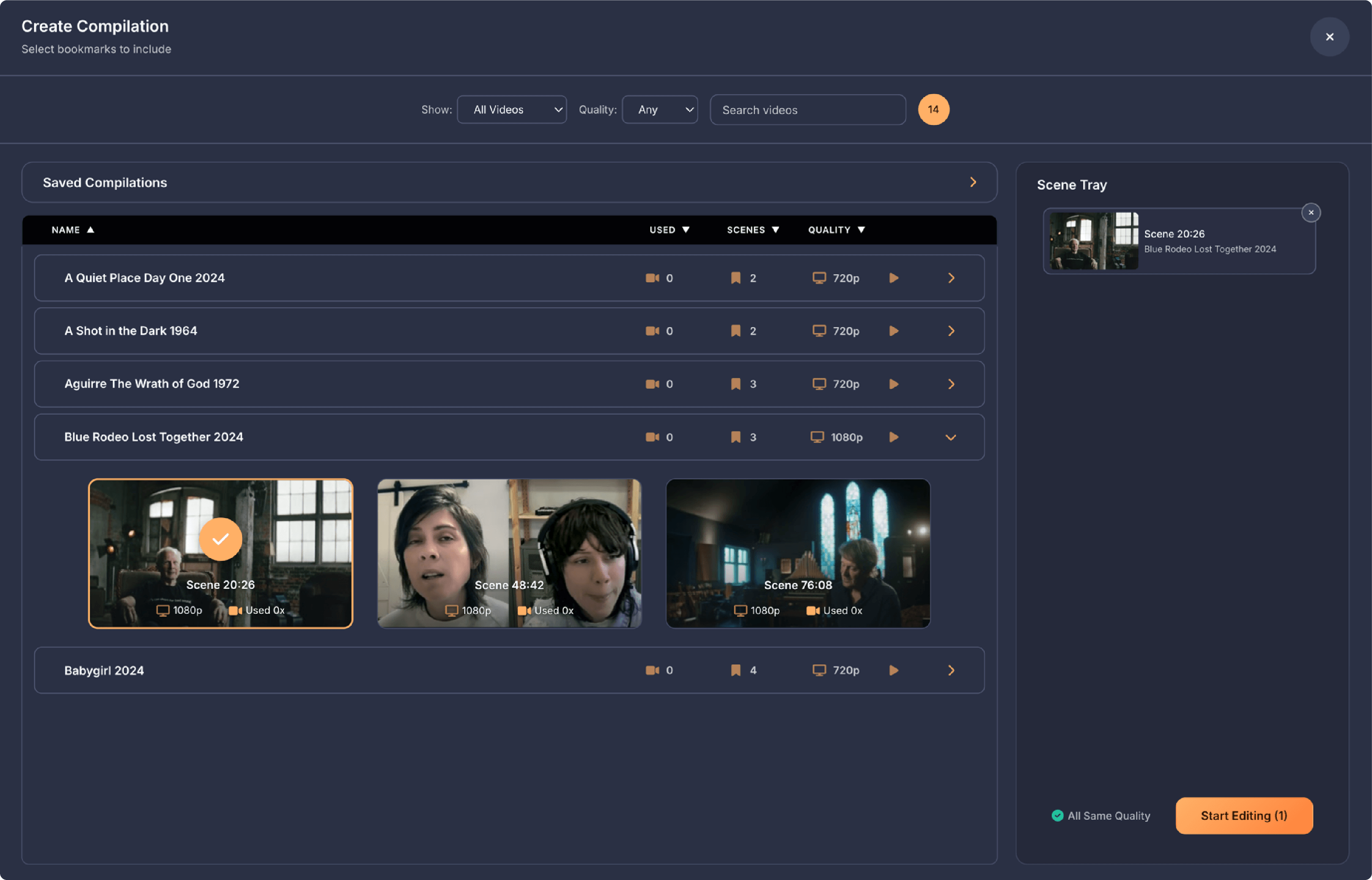
Screen 1 - Create Compilation

The Create Compilation screen is where you select which bookmarked moments you want to include in your compilation. This screen shows all your bookmarks organized by video on the left, with the Scene Tray on the right where your selected bookmarks collect. At the top are tools to filter and search your bookmarks.

Screen 1 - Create Compilation screenshot

At the top of the screen, you'll see the filter controls. The first dropdown says "Show" and lets you pick between All Videos, Unused Only to see videos that haven't been used in any compilations yet, or Used Only to see videos that have already been used. Next to that is the "Quality" dropdown where you can filter by Any quality, 4K, 1080p, 720p, or SD. To the right is a search box where you can type a video name to instantly filter the results. Included on the row is a number badge showing the total count of bookmarks that match your current filters.

Below the filters on the left side, your bookmarks are displayed as rows organized by video. Each row shows the video name on the left, followed by three columns showing how many times that video has been used in compilations, how many bookmarked scenes it has, and what quality the video is. If a video file is unavailable because it was moved, deleted, or the drive is offline, the row appears dimmed and shows Off for the quality. On the right side of each row are three buttons. The play button opens that video in fullscreen mode so you can add, edit, or remove bookmarks, then returns you to the compilation screen when you exit fullscreen. The X button deletes all bookmarks for that video. The chevron button expands the row to show all the individual bookmarked moments as thumbnail tiles.

When you click a row to expand it, you'll see thumbnail tiles for each bookmarked moment. Each tile shows a preview image of that moment. Below the thumbnail is the scene timestamp showing where in the video that bookmark is located, the video name, and how many times that specific bookmark has been used in compilations. When you click a tile, it gets selected and added to the scene tray and a checkmark appears on it. You can also drag the bookmark into the Scene Tray. The tile also highlights with an orange border and checkmark to show it's selected. You can click it again to deselect it. On the right side of the screen is the Scene Tray, which shows all your selected bookmarks as small chips with thumbnails, scene timestamps, and video names. Each chip has an X button to remove it from your selection. Below the Scene Tray, a quality status indicator shows whether your selection is compatible across clips. If all your selected bookmarks are the same quality (4K, 1080p, 720p, or SD), it shows a green checkmark with All Same Quality. If you've mixed different video qualities, it shows a yellow warning triangle with Mixed Quality, because your final export will be limited to the lowest quality in your selection. When you select a bookmark that's lower quality than what you already have, a warning banner appears at the top explaining that this will limit your export quality, giving you the option to cancel or continue. You can check a box on the warning to stop seeing it for the rest of your session.

Once you've selected at least two bookmarks, the Start Editing button at the bottom of the Scene Tray becomes active and shows how many clips you've selected for your compilation. Clicking this button takes you to the next screen where you can trim each clip to the exact length you want.

Screen 2 - Clip Editor

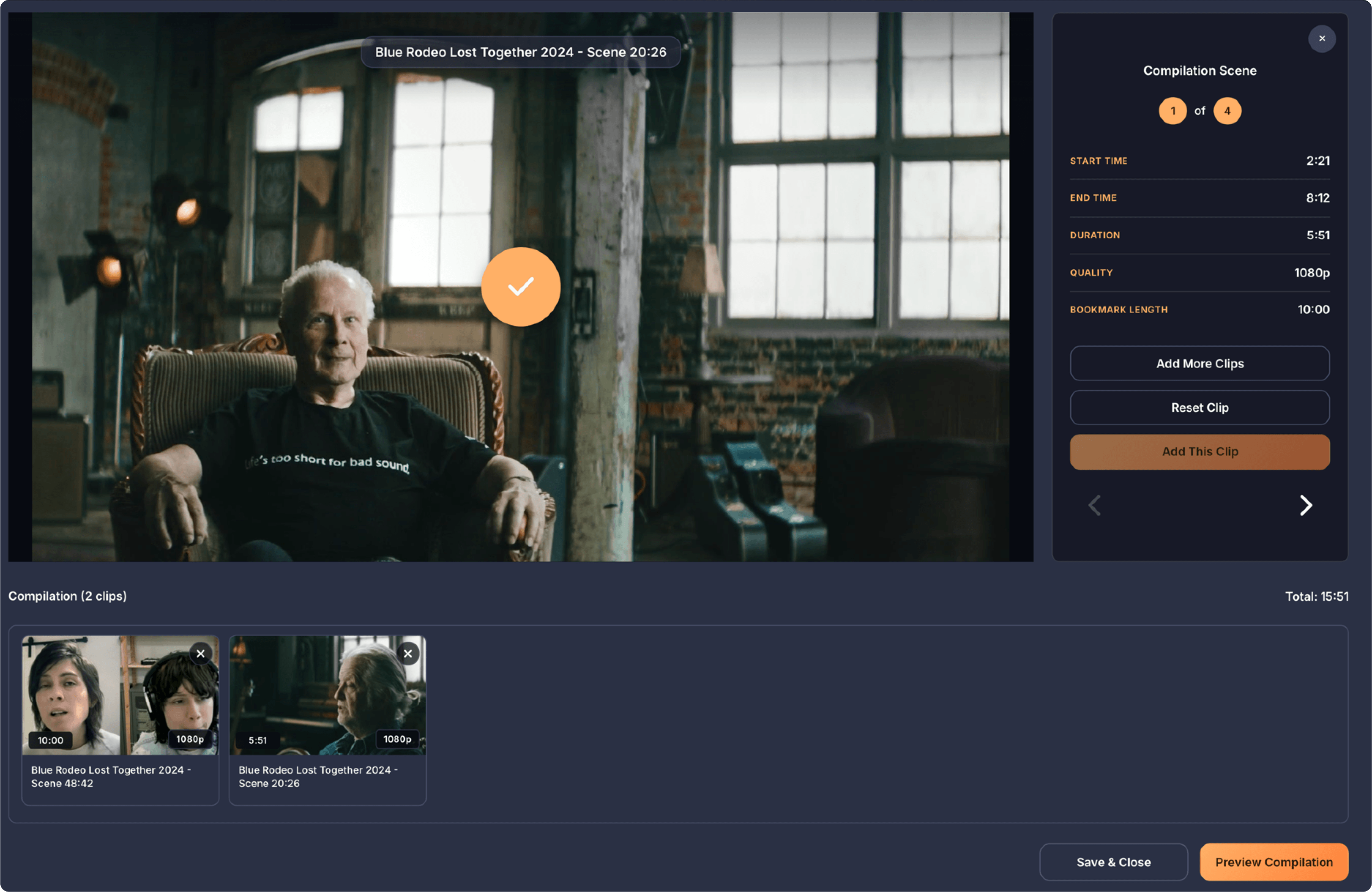
The Clip Editor screen is where you fine-tune the exact start and end points for each bookmarked moment you selected. This screen focuses on one scene at a time, with a large video preview and precise trimming tools.

Screen 2 - Clip Editor screenshot

When you load a scene into the editor, the app doesn't show the entire original video. Instead, it creates a "working area" for you to trim from. The length of this area (labeled in the sidebar as Bookmark Length) is chosen based on these three rules:

  • The Next Bookmark Rule: If you have another bookmark later in the same video, the app stops the footage right where that next bookmark begins. This ensures your scenes don't accidentally "bleed" into the next moment you've saved.
  • The 10-Minute Safety: If there are no other bookmarks after the current one, the app provides a maximum of 10 minutes of footage starting from your bookmark.
  • The End-of-Video Rule: If the actual video file ends before reaching 10 minutes (and there are no other bookmarks), the working area simply stops at the end of the video.

The Video Editor

The video editor is on the upper left of the screen. The video preview features the video with an integrated scrubber at the bottom. To edit and adjust your clip you undertake the following:

  • The Playhead: Drag the circular handle below the playbar to scrub through the video and find the exact frame you want.
  • The Trimming Handles: Drag the triangular handles on the left and right to set your start and end points. To make things easier, these handles will "snap" to the playhead's current position if you drag them close to it.
  • The Play/Pause Button: Located inside the scrubber area, this lets you preview only the highlighted range you've selected.
  • Volume Control: Clicking the speaker icon opens a vertical volume slider so you can adjust the audio level while editing.

The Sidebar

To the right of the video editor is the sidebar, you'll see a counter showing the number of scenes and which scene you are currently editing. You can use the navigation arrows at the bottom of the sidebar to cycle through all the bookmarks you selected in the previous create compilation screen.

The sidebar to the right of the video contains several actions for managing your clips:

  • Add More Clips: If you realize you've missed a scene or need more footage, clicking this button returns you to the selection screen. The app remembers all the clips currently edited and the selections you've already made, so you can simply pick more bookmarks and click the button to continue back to the editor.
  • Reset Clip: The reset clip button clears any trimming you've done for the current scene. It resets the handles to their original positions (the full bookmark length) and returns the video to the bookmark's starting point.

  • Add This Clip: Once you've set your trim points, clicking this button "finalizes" the edit and adds the scene to the tray at the bottom. The button will then disable, and an orange "Compiled" checkmark will appear over the video to confirm that this specific scene is now part of your compilation.
  • Navigation Chevrons: At the very bottom of the sidebar, chevron arrows let you move back and forth between the scenes you've selected to work on. They will be greyed out if you are on the first or last scene in your list.

In the sidebar, you'll see live data for the start time, end time, and the resulting duration of your trimmed clip. You'll also see the video's quality and the total bookmark length (which is the maximum segment you can trim from this specific bookmark).

Once you are happy with the trim, click the Add This Clip button. This action "finalizes" your edit and moves the clip into the Compilation Tray at the bottom of the screen.

The Compilation Tray

The Compilation Tray at the bottom keeps track of every clip you've edited and added for final export as a compilation. It displays the total duration of your entire compilation and shows thumbnails for each clip. The total only counts clips that you have actually finished trimming and clicked Add This Clip on. The scene you are currently working on in the main preview is not added to the total until you click that button. As soon as you add a clip to the tray, remove one, or re-add a clip with new trim points, the total time updates instantly.

You can drag and drop these thumbnails to reorder them. If you change your mind, you can click the X on any thumbnail in the tray to remove it to re-edit. If the clip you are resetting has already been added to the Compilation Tray at the bottom, clicking "Reset" will also remove it from the tray and reset the edits made.

If you decide you need more footage, click Add More Clips to return to the selection screen.

If you navigate away from a scene and come back to it later, the app remembers your trim points. This means the length of that clip in your tray will stay exactly as you left it until you change it again.

Screen 3 - Review and Export

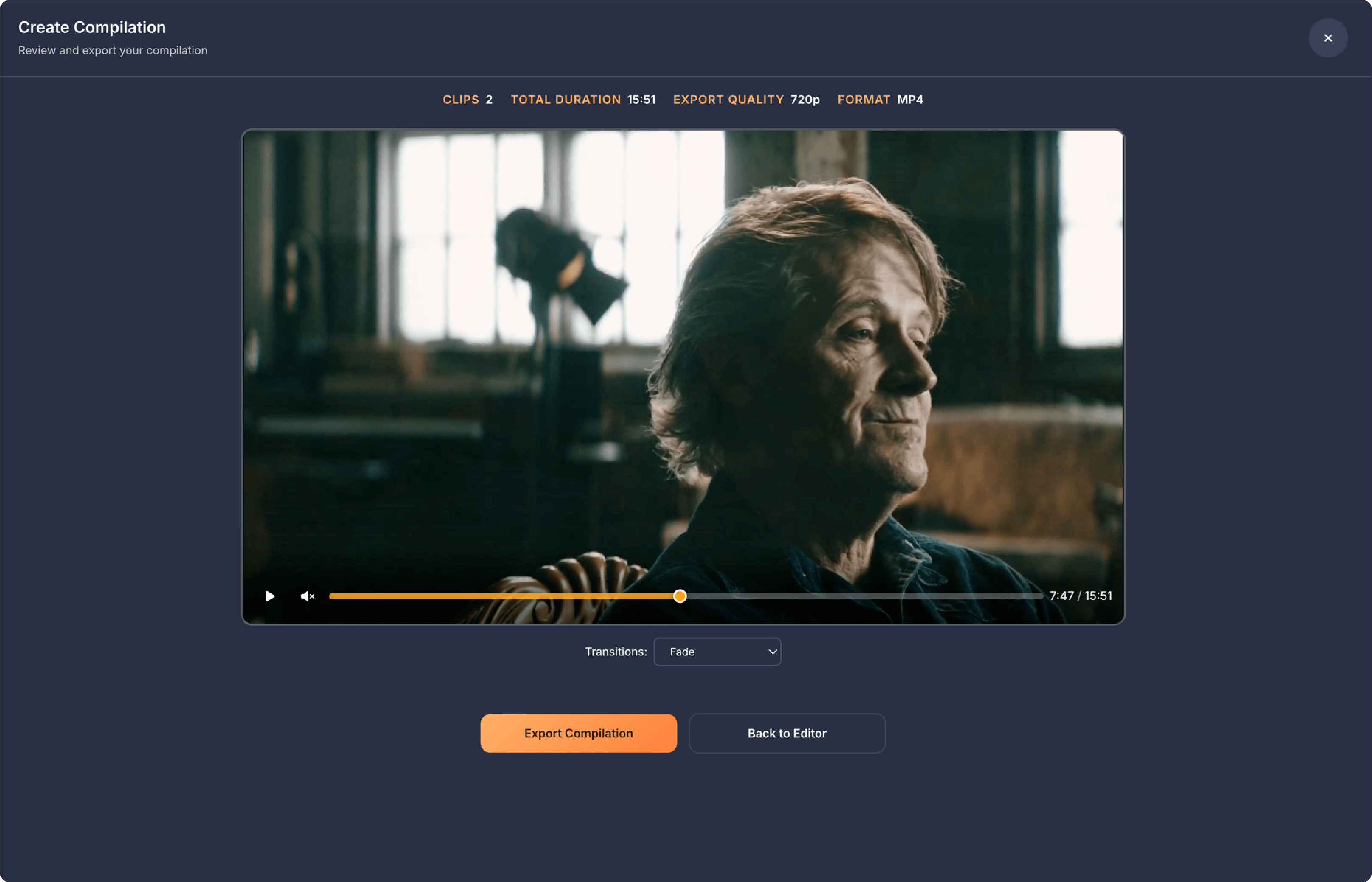
The Review & Export screen is your final checkpoint where you can watch your finished edit as a single, continuous video before saving it to your computer. This screen brings all your individual clips together into a seamless preview, allowing you to see exactly how your story flows from one scene to the next. Integrated Controls of a dedicated play button and volume slider are built into the video window for easy reviewing.

Screen 3 - Review and Export screenshot

At the top of the screen, you will see a summary of your compilation's details. This includes the total number of clips, the final duration of the video, and the export quality which is automatically set based on the lowest-quality clip you included in your selection.

The main focus of this screen is the Compilation Player, which features a continuous timeline of stitched videos, representing the entire length of your compilation, allowing you to jump to any moment across all combined clips.

You can use the dropdown menu below the video to choose how scenes change. Options include:

  • Smooth fade
  • Wipe
  • Slide
  • Standard hard cut

When you are satisfied with the preview, clicking the Export Compilation button will prompt you to name your project and then begin creating your final MP4 video file.

While the video is being built, a progress bar will appear at the bottom of the screen to show you how much is left. If you spot a mistake, you can simply click Back to Editor to return to the trimming tools and make further adjustments.

Saved Compilations

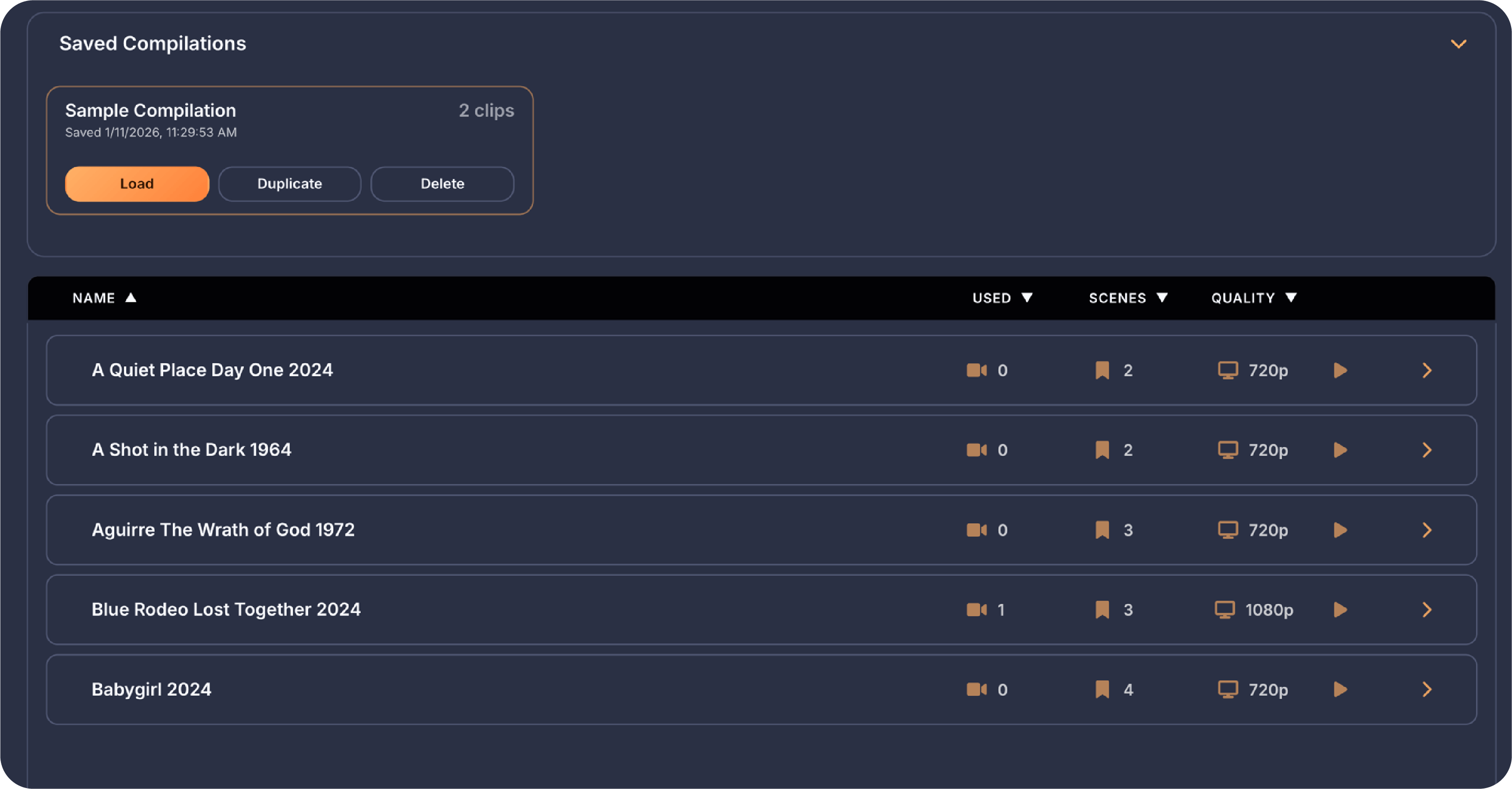
Above the compilation clips on Screen 1 - Create Compilation is the Saved Compilations Tray. This is where completed or your saved uncompleted compilations reside. Because creating a great highlight reel can take time, the app doesn't force you to finish everything in one sitting. The very first time you want to store your work, you use the Save & Close button. If your project doesn't have a name yet, a window will pop up asking you to give it one. Once you click save, the app takes a complete "snapshot" of your work including which clips you picked, how you trimmed them, and what order they are in and stores it safely in the Saved Compilations drawer.

Saved Compilations screenshot

One of the best things about saved compilations is that they are never "finished" until you want them to be. You can open your list of saved projects at any time and click load on any of them. This brings your entire project back to life exactly where you left off. If you find a new video with a great scene, you can load your old compilation, go back to the selection screen, and simply add that new scene to your existing project. If you decide the third scene would actually be better as the opening shot, you can simply drag the thumbnails in the tray at the bottom to rearrange the sequence. You can always go back into the Editor for any clip and adjust the start or end points if you decide a scene is too long or too short.

The app is designed to be "smart" about how it handles your files and stays connected to your library. If you use a video in a compilation, a small usage badge will appear on that video in your main grid, letting you know it's part of a saved project.

The most powerful feature of this system is how it handles accidental changes. If you happen to delete a bookmark or even remove a video from your library that is needed for one of your saved projects, the app doesn't just give up. When you load that compilation, the app will perform a silent "Auto-Restore." It will search your computer for the missing video and reinstate the missing bookmark into your library automatically. This ensures that your creative work is protected, even if you're doing some "housecleaning" in your main video folders.

The duplicate feature is a powerful tool for when you want to use an existing compilation as a starting point for a new project. Instead of having to open a project and then remember to use "Save As," the duplicate button allows you to create an exact carbon copy of any saved compilation directly from your list.

When you click the duplicate icon, the app instantly creates a new independent project file. Any changes you make to the copy, such as adding new clips, reordering scenes, or changing the trim points, will not affect the original project at all.

Because the app is smart about tracking your files, the duplicate project will also show its own usage badges in your main video library. This means your videos will correctly show that they are being used in multiple different projects, helping you keep track of which footage is your most popular across all your creative work.

When you finally click Export Compilation to create your new MP4 video file, the app performs one last "safety save" in the background. This ensures that your saved project always matches the video file you just created. If you want to make a different version of your project - perhaps a "Short Edit" and a "Long Edit" - you can use the Save As feature. This creates a duplicate project with a new name, allowing you to have two different versions of the same highlight reel without losing the work you did on the original.

Settings

Hardware Settings

The Hardware section helps you understand how your computer's capabilities affect video playback performance. Playing multiple HD videos simultaneously is demanding - this section helps you find the right balance between grid size and smooth playback.

Hardware Settings screenshot

System Information: Displays your computer's key hardware specs that affect video playback performance:

  • CPU: Your processor handles video decoding. More cores and higher speeds allow more simultaneous videos.
  • GPU: Your graphics card renders the video frames. A dedicated GPU handles larger grids better than integrated graphics.
  • RAM: System memory affects how many videos can be buffered. More RAM means smoother playback with larger grids.
  • OS: Your operating system (macOS or Windows version).

Recommendation: Based on your hardware and where your videos are stored, VidVana suggests an optimal grid size. This is a starting point - you can always adjust based on your actual experience. If videos are stuttering or buffering, try a smaller grid; if playback is smooth, you might be able to go larger.

Video Locations: Where your video files are stored significantly impacts playback performance, especially with larger grids. This section scans your library and shows how many videos are stored in each location type:

  • Local Drive: Videos on your computer's internal drive (SSD or hard drive) load fastest. These can handle the largest grid sizes without buffering issues.
  • USB / External: Videos on external drives connected via USB work well for medium-sized grids (up to 3×3). Performance depends on your USB speed (USB 3.0+ recommended).
  • Network / NAS: Videos stored on network drives or NAS devices have the most latency. Stick to smaller grids (2×2 or 3×3) for smooth playback, as network speeds typically can't keep up with many simultaneous video streams.

Grid Player Settings

These settings control how videos behave on the main grid view where multiple videos play simultaneously in tiles.

Grid Player Settings screenshot

Main Screen Volume: When you're watching multiple videos at once, you usually want them muted so you're not overwhelmed by competing audio. These settings let you control the default audio behavior.

  • Main Screen Volume Initial State: Choose whether videos start muted or with sound when the app opens. Muted is recommended for privacy - you don't want audio blasting unexpectedly when you launch the app. Default: Muted
  • Initial Volume Level: If you choose to start unmuted, this sets how loud videos will be. Keep it low (5-20%) since multiple videos playing audio simultaneously can get overwhelming. Default: 10%
  • Volume Adjustment Increments: When you use the volume controls, this determines how much the volume jumps with each click or key press. Smaller increments (5%) give finer control; larger increments (25%) let you quickly crank it up or down. Default: 10%
  • Video Start Position: Many videos have long intros, logos, or slow openings. This setting lets you skip past that automatically by starting videos partway through. "Beginning" plays from the start, percentage options skip ahead (e.g., "10% in" on a 60-minute video starts at 6 minutes), and "Random" picks a spot between 5-50% for variety. Default: Beginning

Swap Timer Settings

The swap timer automatically rotates videos in and out of your grid tiles at random intervals, keeping your viewing experience fresh without manual intervention. Each tile swaps independently within the range you set.

  • Swap Range in Minutes: Videos swap out after a random time between your MIN and MAX values. A narrower range (like 5-10 min) creates predictable pacing; a wider range (like 2-30 min) adds more variety. The MIN prevents videos from swapping too quickly before you've had a chance to watch them. Default: 2 min / 10 min
  • Allow Persistence (No Swap): When enabled, this adds an option to disable swapping entirely. Use this when you find videos you want to keep watching without interruption - they'll stay on their tiles until you manually swap them. Default: OFF

Scrub Settings

Scrubbing lets you quickly jump forward or backward within a video using the scrub bar that appears on each tile. This is different from skip buttons - scrubbing gives you a slider to smoothly seek through a section of the video.

  • Scrub Range in Seconds: This determines how far back and forward the scrub bar can move from the current position. A 60-second range means you can scrub up to 1 minute in either direction; a 600-second (10 minute) range gives you much broader seeking ability. Larger ranges are useful for long videos where you want to jump around significantly. Default: 60s back / 60s forward

Speed Settings

Playback speed controls let you watch videos faster or slower than normal. Faster speeds are great for scanning through content quickly; slower speeds help you catch details in fast-moving scenes.

  • Speed Range: The MIN speed is fixed at 0.25x (quarter speed) for detailed viewing. You can adjust the MAX speed up to 4x for rapid scanning. The speed slider on the grid will only offer speeds within your selected range. Default: 0.25x / 2x

Smart Start Settings

Smart Start controls how videos begin playing when loaded via the Most Bookmarked option in the Quick Play menu.

  • Smart Start (Most Bookmarked): When enabled, videos loaded via Most Bookmarked automatically jump to their first bookmarked moment instead of starting from the beginning. This gets you straight to the good parts you've already marked. Default: OFF

Full Screen Settings

These settings control the fullscreen viewing experience when you expand a single video to fill your entire screen.

Full Screen Settings screenshot

Full Screen Volume: Fullscreen mode has its own volume settings, separate from the grid. Since you're focused on one video, you might want different audio behavior than when watching multiple videos.

  • Full Screen Volume Initial State: Choose whether fullscreen starts muted or with sound. Even if you prefer muted on the grid, you might want audio in fullscreen since you're focused on a single video. Default: Muted
  • Initial Volume Level: If starting unmuted, this sets the volume level. The range is higher (25-100%) than grid settings because you're only hearing one video. Default: 50%
  • Volume Adjustment Increments: How much volume changes with each adjustment. Works the same as grid volume increments. Default: 10%

Screenshots: VidVana can automatically capture screenshots at regular intervals while you watch in fullscreen. This is useful for creating image collections from your favorite videos.

  • Screenshot Interval in Seconds: How often the app captures a screenshot during auto-capture mode. Shorter intervals (5s) capture more frames but create larger exports; longer intervals (120s) are better for extended recording sessions. Default: 15s
  • Export Warning Threshold: When exporting screenshots, the app will warn you if you're about to save more than this many images. This prevents accidentally creating thousands of files that could fill up your storage. Default: 100
  • Default Export Format: PNG files are higher quality but larger; JPG files are smaller but slightly compressed. PNG is better for archiving; JPG is better if storage space is a concern. Default: PNG

Montage Slideshow: The montage feature captures still frames from your video and displays them as an automated slideshow. It's like creating a highlight reel of images from the video.

  • Capture Interval in Seconds: How often the montage captures a new frame from the playing video. Shorter intervals capture more moments; longer intervals are better for lengthy videos. Default: 15s
  • Display Duration in Seconds: How long each captured image stays on screen during the slideshow before transitioning to the next. Shorter durations create a faster-paced slideshow; longer durations let you linger on each moment. Default: 5s

Loop Video: Loop mode continuously replays a short segment of the video. When you find a moment you love, loop mode lets you watch it repeat indefinitely.

  • Loop Duration in Seconds: How long the looping segment is. A 10-second loop repeats a brief moment; a 30-second loop captures a longer scene. The loop centers on your current playback position. Default: 10s

Playback:

  • Start Fullscreen from Beginning: When enabled, entering fullscreen always restarts the video from the beginning - useful if you want to watch the whole thing. When disabled, fullscreen continues from wherever the video was playing in the grid tile - useful if you just want a bigger view of what you're already watching. Default: ON
  • Auto-Enable Scope in Fullscreen: Scope is a zoom feature that magnifies a portion of the video. When this is enabled, Scope automatically activates every time you enter fullscreen, giving you an instant close-up view. You can still double-click to exit Scope during viewing, but it re-activates when you navigate to another video. Default: OFF

Fullscreen Speed:

  • Speed Range: The MIN is fixed at 0.25x for detailed slow-motion viewing. You can set the MAX anywhere up to 4x. The fullscreen speed slider will only offer speeds within this range. Default: 0.25x / 2x

Advance Video (Skip): Skip buttons let you jump forward or backward in the video by a fixed amount - useful for skipping past slow sections or rewinding to catch something you missed.

  • Skip Time in Seconds: How far the back and forward skip buttons jump. You can set different values for each direction. Smaller skips (5s) give precise control; larger skips (60s) let you move quickly through long videos. Default: 15s back / 15s forward

Library Settings

These settings control how your video library is displayed and organized.

Library Settings screenshot

Default Library Grid Size: The Library displays your videos as thumbnail cards in a grid. This setting controls how large those thumbnails appear.

  • Library Tile Size: Choose from extra small (XS) to extra large (XL). Smaller tiles let you see more videos at once but with less detail; larger tiles show clearer thumbnails but fewer videos fit on screen. Default: SM (Small)

Library Default Landing Page: When you open the Library, it can start on different tabs depending on how you prefer to browse.

  • Library View: Choose whether the Library opens to "Videos" (showing all your videos in a single list) or "Folders" (showing your videos organized by the folders you imported them from). If you've organized your videos into meaningful folders on your computer, Folders view helps maintain that organization. Default: All Videos

Library View Initial Sort: These settings determine the default order videos appear when you open each tab. You can always change the sort temporarily, but these are the starting defaults.

  • All Videos Start Sorted By: Choose how the All Videos tab is sorted when you first open it. "Name" sorts alphabetically, "Added" shows newest imports first, "Recent" shows most recently watched first, "Rating" shows highest-rated first, "Watched" shows most-watched first. Default: Name
  • Folders Start Sorted By: Choose how the Folders tab is sorted. "Name" sorts alphabetically, "Popular" shows folders you watch most often first, "Watched" shows folders with most-watched videos first, "Rating" shows folders containing your highest-rated videos first. Default: Name

Quick Play Video:

  • Quick Play Video Selected for Load on Close: When enabled, the video you were watching in Quick Play will be automatically selected in the Library when you close the player. Default: OFF

Playlists: Playlists let you save groups of videos to load together later. These settings control playlist-related prompts and menus.

  • Option to Save as Playlist on Load to Grid: When you select videos from the Library and load them to the grid, this setting shows a popup asking if you want to save that selection as a named playlist for future use. Turn this off if you find the prompt annoying and prefer to create playlists manually. Default: ON
  • Show Load Playlist Menu: When enabled, your saved playlists appear in the Quick Play menu for one-click loading. Turn this off if you have many playlists and prefer to access them only through the Library. Default: ON
  • Max Playlists in Menu: If "Show Load Playlist Menu" is on, this controls how many playlists appear in the Quick Play menu. Shows your most recently created playlists first. Default: 5

Performance:

  • Show Performance Warnings: When multiple videos are buffering or loading slowly, the app can display a warning suggesting you reduce your grid size for smoother playback. This is helpful if you're pushing your hardware's limits. Turn this off if you find the warnings distracting and prefer to manage performance yourself. Default: ON

Backups & Logs Settings

These settings help you protect your data and troubleshoot issues.

Backups & Logs Settings screenshot

Auto-Backup: VidVana can automatically save backups of your library data (videos, ratings, bookmarks, playlists, settings) so you don't lose everything if something goes wrong. Backups are stored inside the app and the last 5 are kept.

  • Auto-Backup: When enabled, the app creates a backup each time it starts (based on your interval setting). If your data ever gets corrupted or you accidentally delete something important, you can restore from one of these automatic backups. Default: ON
  • Backup Interval: Controls how often automatic backups are created. "Every Session" creates a backup each time you open the app, "Daily" only backs up if it's been at least 24 hours since the last backup, and so on. More frequent backups mean more recent restore points but slightly slower app startup. Default: Every Session
  • Backups Stored: Shows how many automatic backups are currently saved. The app keeps up to 5; older ones are automatically deleted when new ones are created.
  • Restore from Auto-Backup: Opens a list of your saved backups showing when each was created. Select one to restore your library to that point in time. Warning: this replaces all your current data with the backup's data.

Export Backup: While auto-backups are stored inside the app, you can also export backups to any location you choose - your Downloads folder, Dropbox, an external drive, etc. This is useful for extra safety or for moving your library to another computer.

  • Export Backup: Creates a backup file and lets you save it wherever you want. Use this before major changes or periodically for extra peace of mind.
  • Import Backup: Loads a backup file you previously exported. Your current library will be completely replaced with whatever is in that backup file.

Logs: Application logs record technical information about what the app is doing. They're primarily useful when something goes wrong and you need to troubleshoot or report an issue.

  • Download Logs: Exports all log files as a ZIP that you can send to support or examine yourself. Privacy note: Logs only contain technical app activity (start times, errors, feature usage). They never include video names, file paths, or any content information - your privacy is protected.
  • Clear Logs: Deletes all accumulated log files to free up disk space. The app will start a fresh log immediately. Use this if your logs have grown large and you don't need the historical data.
  • Log Size: Shows how much disk space your logs are currently using.

Data Management:

  • Factory Reset: The nuclear option. This permanently deletes ALL your data - your entire library, all videos, ratings, bookmarks, playlists, compilations, and settings - and returns the app to its fresh-install state. You'll need to set up a new PIN. Use this only if you want to completely start over or before uninstalling the app. This action cannot be undone.

Downloads Settings

These settings control what happens when you export files from VidVana (screenshots, video clips, montages, compilations).

Downloads Settings screenshot

Export Behavior:

  • Open Folder After Export: When you export files, this setting determines whether the destination folder automatically opens so you can see your exported files immediately. Enable this if you want quick access to your exports; disable it if you prefer exports to happen silently in the background. Default: OFF

Security Settings

These settings protect your privacy and control access to your library. All your data is encrypted with AES-256-GCM, the same encryption standard used by banks and government agencies.

Security Settings screenshot

PIN Settings: Your PIN is required every time you open VidVana. It's not just a password - it's the key that decrypts your data. Without the correct PIN, your library is completely inaccessible.
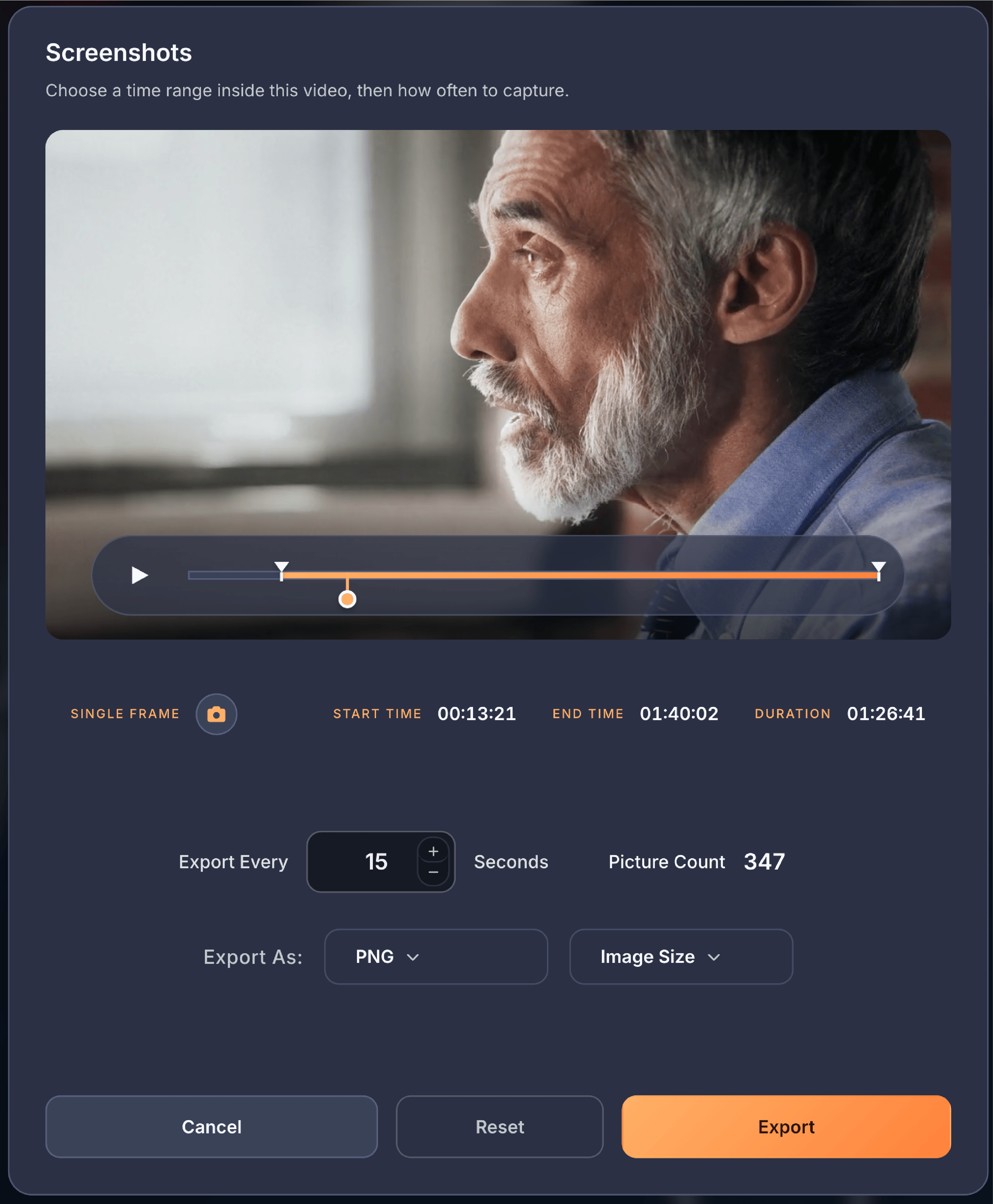
  • Change PIN: Update your PIN to something new. You'll need to enter your current PIN first to verify it's really you making the change.

  • PIN Length: Choose between 4 or 6 digits. A 6-digit PIN is significantly harder to guess (1 million combinations vs 10,000) but takes slightly longer to enter. If you're concerned about someone trying to guess your PIN, choose 6 digits. Changing this setting requires setting a completely new PIN.
  • Max Failed PIN Attempts: After this many wrong guesses, the app locks and requires you to answer your security questions to regain access. Lower numbers (3) are more secure but risk locking yourself out if you mistype; higher numbers (10) give you more chances but also give potential intruders more attempts. Default: 5 attempts
  • Security Questions: Your backup way to reset your PIN if you forget it or get locked out. You set up questions and answers that only you would know. Click this to update your questions at any time (requires entering your PIN first).

Auto-Lock: These settings automatically lock the app after periods of inactivity, adding an extra layer of protection if you step away from your computer.

  • Auto-Lock Timeout: If you haven't touched your mouse or keyboard for this long, the app automatically locks and requires your PIN to continue. "Never" disables this feature. Shorter timeouts (5 minutes) are more secure but may lock while you're actively watching; longer timeouts (1 hour) are more convenient but leave the app accessible longer if you walk away. Default: Never
  • Lock When Minimized: When enabled, minimizing the app window (or switching to another app) automatically locks VidVana. When you return, you'll need to enter your PIN. This is useful if other people might use your computer while you're away, even briefly. Default: OFF

Privacy Screen: The Privacy Screen is an emergency feature that instantly hides everything with a single key press. If someone unexpectedly walks into the room, you can make your screen look innocent in a fraction of a second.

Panic Shortcut: Press Shift + Escape to immediately hide all videos behind a cover image. The shortcut is intentionally fixed - in a panic situation, you need reliable muscle memory, not a customizable shortcut you might forget. When the Privacy Screen is active, the app looks like a simple landing page with no indication of what was playing.

  • Confirmation Sound: When enabled, a subtle beep plays when the Privacy Screen activates. This audio confirmation lets you know the panic shortcut worked without having to look at the screen. Useful if you're pressing the shortcut while looking away. Default: OFF

Duress PIN: The Duress PIN is an advanced security feature for situations where someone might force you to open the app. It's a secondary PIN that opens VidVana to a completely empty library - no videos, no history, no evidence of your actual collection.

  • Enable Duress PIN: Turn this feature on or off. When enabled, you can set up a secondary PIN. Default: OFF
  • Set Duress PIN: Choose a PIN different from your main PIN. If you're ever coerced into opening the app, entering this PIN shows an empty library instead of your real one. Your actual data remains safely encrypted and accessible only with your real PIN. The duress PIN must be the same length as your main PIN (4 or 6 digits).

Security Status: A quick overview showing that your security features are properly configured and active.

  • Encryption: Confirms AES-256-GCM encryption is protecting your data. This should always show as active.
  • PIN Status: Confirms your PIN is set and securely hashed. Your actual PIN is never stored - only a cryptographic hash that can verify the correct PIN.
  • Security Questions: Shows whether you've configured recovery questions. "Configured" means you have a backup way to reset your PIN if needed.

License Settings

The License page shows your current VidVana license status and lets you manage your Pro license.

License Status: Displays your current tier (Trial, Pro, or Regular) and relevant details. During a trial, you'll see how many days remain. Pro users see an "Active" badge confirming their license is valid.

Activate License: If you've purchased VidVana Pro, enter your license key here to unlock all features. Your key was emailed to you after purchase from license@vidvana.app. If you can't find it, check your spam folder or contact support.

Upgrade to Pro: Opens the VidVana website where you can purchase a Pro license. Pro unlocks unlimited videos, 5×5 grid sizes, smart favorites, compilation exports, and all other premium features with a one-time purchase (no subscription).

Manage License (Pro users only): Once you have Pro, this section appears showing your license key with a Copy button and a Deactivate option. Your Pro license works on up to 2 personal devices. If you need to move Pro to a different computer, click Deactivate to free up a slot, then activate on your new device.

Application Menus

Application Menus

VidVana uses native application menus that follow platform conventions. On Mac, you'll see the standard macOS menu bar; on Windows, the menu bar appears at the top of the application window. Most features are accessible through these menus, and many have keyboard shortcuts for quick access.

Keyboard Shortcut Notation: Throughout this section, shortcuts are shown as Mac / Windows. For example, "⌘+O / Ctrl+O" means Command+O on Mac or Control+O on Windows.

Security & Privacy

Encryption & Security

VidVana was built from the ground up with a "Privacy First" philosophy. Your video collection, viewing history, ratings, bookmarks, and all other personal data are encrypted and stored locally on your device. Nothing is uploaded to the cloud, no usage data is collected, and the app works completely offline.

Encryption Technology

All your data is protected with AES-256-GCM encryption - the same encryption standard used by banks, governments, and military organizations worldwide. AES-256 is considered unbreakable with current technology; even the world's most powerful supercomputers would take billions of years to crack it.

How Your Data is Protected:

  • Library Data: Your entire library - video history, ratings, bookmarks, playlists, compilations, custom names, watch counts, and settings - is encrypted before being written to disk. The encrypted files are stored in a secure data folder within the app's storage location.
  • Thumbnails: Every thumbnail image extracted from your videos is encrypted with AES-256-GCM before being saved. The thumbnails are stored as .enc files that appear as random data to anyone who tries to view them outside the app.
  • PIN & Security Questions: Your PIN is never stored in plain text - not even in encrypted form. Instead, VidVana stores only a cryptographic hash of your PIN combined with a random salt. This means even if someone accessed your data files, they couldn't determine your PIN. Security question answers are similarly hashed.

Technical Details:

  • Algorithm: AES-256-GCM (Galois/Counter Mode) with authenticated encryption
  • Key Derivation: PBKDF2 with 100,000 iterations using SHA-256
  • Initialization Vector: Random IV generated for each encryption operation (12-16 bytes depending on context)
  • Authentication Tag: 16-byte tag for data integrity verification
  • Salt: Random 16-byte salt generated per PIN

The GCM mode provides both confidentiality (data can't be read) and authenticity (data can't be tampered with without detection).

PIN Protection

Your PIN is the key to your entire VidVana experience. Without the correct PIN, your encrypted data is completely inaccessible.

PIN Security Features:

  • Never Stored: Your actual PIN is never saved anywhere. VidVana stores only a one-way cryptographic hash that can verify the correct PIN but cannot be reversed to reveal it.
  • Salted Hashing: Each PIN is combined with a random salt before hashing. This means even if two users had the same PIN, their stored hashes would be completely different.
  • Lockout Protection: After a configurable number of failed PIN attempts (3, 5, or 10), the app locks and requires you to answer your security questions to regain access. This protects against brute-force guessing.
  • Length Options: Choose between 4-digit (10,000 combinations) or 6-digit (1,000,000 combinations) PINs based on your security needs.

Security Questions: Security questions provide a backup way to reset your PIN if you forget it. VidVana offers questions designed to have answers only you would know. Your answers are normalized (trimmed, lowercased) and hashed - they're never stored in plain text.

Privacy Features

VidVana includes several features specifically designed to protect your privacy in real-world situations.

Privacy Screen (Panic Button): Press Shift+Escape at any time to instantly hide everything behind a cover image. All videos immediately stop playing, and the screen shows a generic landing page with no indication of what you were watching.

  • Works in any mode (grid, fullscreen, library)
  • Activates in a fraction of a second
  • Optional confirmation beep so you know it worked
  • Press Shift+Escape again to return to where you were

Duress PIN: The Duress PIN is an advanced security feature for extreme situations where someone might force you to open the app. It's a secondary PIN that opens VidVana to a completely empty library - no videos, no history, no favorites, no evidence of your actual collection.

  • Set a different PIN than your main PIN
  • Must match your main PIN length (4 or 6 digits)
  • Opens to an empty library that looks like a fresh install
  • Your real data remains safely encrypted and accessible only with your real PIN

Auto-Lock: Configure VidVana to automatically lock after a period of inactivity. If you step away from your computer, the app will require your PIN again before anyone can see your content.

  • Options: Never, 5 minutes, 15 minutes, 30 minutes, 1 hour
  • Timer resets on any mouse or keyboard activity

Lock When Minimized: When enabled, minimizing the app window (or switching to another app on Mac) automatically locks VidVana. When you bring the window back up, you'll need to enter your PIN.

What Data Stays on Your Device

Everything. VidVana stores all data locally in your app data folder:

  • Your complete video library and metadata
  • All ratings, bookmarks, and watch history
  • Playlists and compilations
  • Custom video names
  • Encrypted thumbnails
  • Settings and preferences
  • Application logs (which never contain video information)

What VidVana Does NOT Do

We don't collect or transmit any of your video data. Specifically:

  • No Cloud Storage: Your videos, thumbnails, and library data never leave your computer
  • No Usage Analytics: We don't track what you watch, how long you watch, or what features you use
  • No Telemetry: The app doesn't phone home with usage statistics
  • No Video Fingerprinting: We don't identify or catalog your video content
  • No Behavioral Tracking: We don't monitor your viewing patterns
  • No Third-Party Sharing: No data is ever shared with advertisers or data brokers

License Verification: The only network communication VidVana performs is a license check to verify your trial/Pro status. This check sends only a device fingerprint (a hash of your hardware characteristics) and app version. It does NOT send video filenames, paths, thumbnails, viewing history, ratings, bookmarks, or any other content from your library.

Application Logs: VidVana maintains logs for troubleshooting purposes. These logs contain only technical app activity (start times, errors, feature usage). Logs never contain video filenames, file paths, thumbnail data, or any content that could identify what you're watching.

Your Privacy Guarantee

Summary:

1. Your data is encrypted with AES-256-GCM before touching the disk 2. Your PIN is never stored - only a salted hash 3. Your videos stay on your device - nothing is uploaded anywhere 4. No tracking or analytics - we don't monitor how you use the app 5. Privacy Screen lets you hide everything instantly with one keystroke 6. Duress PIN shows an empty library if you're forced to open the app 7. Auto-lock protects you if you step away 8. Logs contain no video info - your viewing history is private

VidVana is built for people who value their privacy. We believe your personal video collection is nobody's business but your own.

Technical Details

Video Format Support

VidVana checks both the container format (file extension) and the codecs inside each video during import. Videos with incompatible codecs are automatically excluded and can be exported to a report for conversion.

Supported Container Formats:

  • MP4 (.mp4, .m4v)
  • WebM (.webm)
  • QuickTime (.mov)
  • Matroska (.mkv)
  • OGG Video (.ogv, .ogg)

Supported Video Codecs:

  • H.264 / AVC (most common, universal support)
  • H.265 / HEVC (iPhone videos, 4K content - works on modern Mac/Windows)
  • VP8, VP9 (WebM format)
  • AV1 (newest format, excellent compression)
  • Theora (open source OGG format)

Unsupported Video Codecs (excluded at import):

  • MPEG-4 Part 2 / DivX / Xvid (legacy format - requires transcoding)
  • MPEG-1 / MPEG-2 (legacy formats - requires transcoding)
  • ProRes (professional editing codec - requires transcoding)
  • DNxHD / DNxHR (professional editing codec - requires transcoding)
  • Motion JPEG / MJPEG (unreliable playback - requires transcoding)

Supported Audio Codecs:

  • AAC (most common, universal support)
  • MP3
  • Opus (modern, excellent quality)
  • Vorbis (OGG audio)
  • FLAC (lossless)
  • PCM / WAV (uncompressed)
  • ALAC (Apple Lossless)

Unsupported Audio Codecs (excluded at import):

  • DTS / DTS-HD MA (requires licensed decoder)
  • Dolby Digital / AC3 (requires licensed decoder)
  • Dolby Digital Plus / EAC3 (requires licensed decoder)
  • Dolby TrueHD / Atmos (requires licensed decoder)

Important: Videos with unsupported audio will be excluded even if the video codec is compatible. You can use free tools like HandBrake to re-encode the audio to AAC while keeping the original video quality intact.

Hardware Requirements

To ensure a smooth experience when playing dozens of videos simultaneously and handling real-time encryption, your computer should meet the following specifications.

Supported Operating Systems:

  • macOS 11 (Big Sur) or later
  • Windows 10 or later (64-bit Intel or AMD processor required; ARM-based Windows devices are not currently supported)

Minimum Specifications (Best for standard grids up to 3x3 and 1080p content):

  • Processor (CPU): Intel Core i5 / AMD Ryzen 5 (Quad-core) or better
  • Memory (RAM): 8GB
  • Graphics (GPU): Integrated Graphics (Intel UHD / Iris Xe / AMD Radeon Vega)
  • Storage: 500MB available space for the application and database

Recommended Specifications (Best for 4x4 and 5x5 grids, 4K content, and fast compilation exports):

  • Processor (CPU): Intel Core i7 / AMD Ryzen 7 (8-core) or Apple M-Series (M1/M2/M3)
  • Memory (RAM): 16GB or higher
  • Graphics (GPU): Dedicated GPU (NVIDIA RTX 30-series / AMD RX 6000-series or better) with Hardware Acceleration enabled
  • Storage: Internal NVMe SSD (Highly recommended for instant seeking and thumbnail generation)

Display & Resolution:

  • Minimum Practical Resolution: 1366 × 768 (Standard for budget laptops)
  • Optimal Design Target: 1920 × 1080 (Full HD) or higher
  • High-Density Support: Full support for Apple Retina displays and 4K Windows scaling
  • Monitor Support: Compatible with Ultrawide (21:9) and Super-Ultrawide (32:9) monitors for expanded grid views

Networking & File Access:

  • Internet Access: Not required for core functionality (100% offline-capable)
  • Local Video Access: Direct access to internal or external hard drives via USB 3.0 or higher
  • NAS / Network Storage: Gigabit Ethernet (wired) or Wi-Fi 6 (wireless) is recommended for streaming multiple high-bitrate files from a network server
  • Performance Monitoring: The application includes a "3-Video Threshold" monitor. If 3 or more videos fail to load within 5 seconds, a performance warning will suggest reducing grid size or improving disk speed.